Create a Test Role

Create custom test roles for role-based security testing.

If you use role-based access control in your agentic systems, you should test for privilege escalation issues. This involves determining if a lower-privilege role has access to higher-privilege agent components or tools.

Akto automates privilege escalation security tests for agentic systems. You should define as many roles as exist in your application. For example, if you're running a B2B SaaS with AI agents, you might have ADMIN, MEMBER, VIEWER, and GUEST roles. Role creation is a one-time configuration.

Creating a Test Role

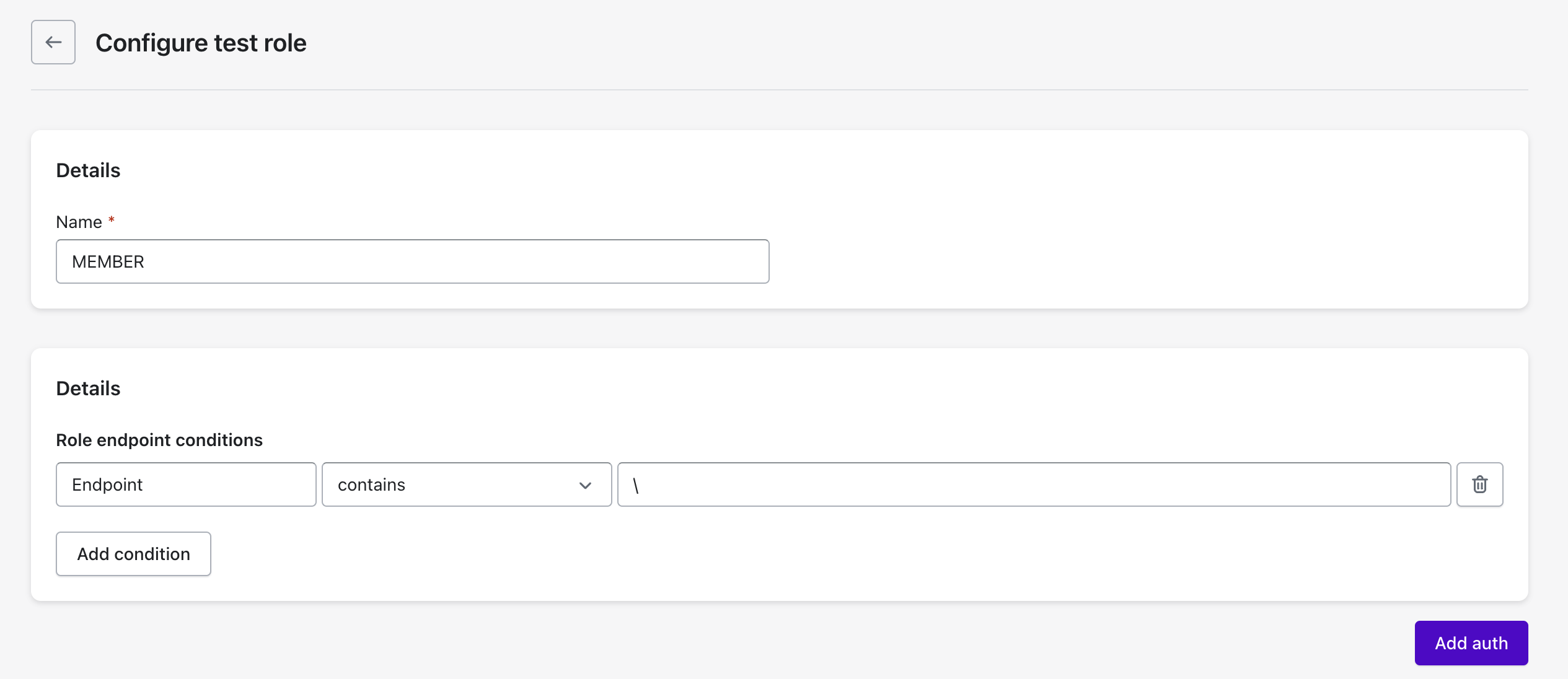
  1. Navigate to Agentic Red Teaming > Scan Roles

  2. Click Create New Test Role

  3. Enter the role name

  4. Specify role component conditions (which collections or components this role can access)

  5. Click Save

Adding Auth Token for Role

You can add a hard-coded token for quick testing, but for daily tests or CI/CD integration, use Automated Auth setup. For TLS-based authentication, configure TLS Authentication.

Hard-coded Auth Token

  1. Navigate to Scan Roles

  2. Click the menu icon (...) for the role

  3. Click Add Auth

  4. Enter the auth header key and value (e.g., Authorization and Bearer token)

  5. Click Save

You can add header conditions to use the auth token only for specific scenarios.

Automated Auth Token Generation

For continuous testing, set Akto to automatically fetch fresh auth tokens before each test run. This ensures tests use valid authentication.

  1. Configure Request Details: Set up the API call details including URL, method, headers, and body to obtain a token.

  2. Execute the Call: Test the API call to verify it returns an auth token.

  3. Extract Token: Identify where the token appears in the response (header or body) and configure extraction.

Akto will execute this sequence before running tests to fetch a fresh auth token, enabling daily tests and CI/CD integration without token expiry issues.

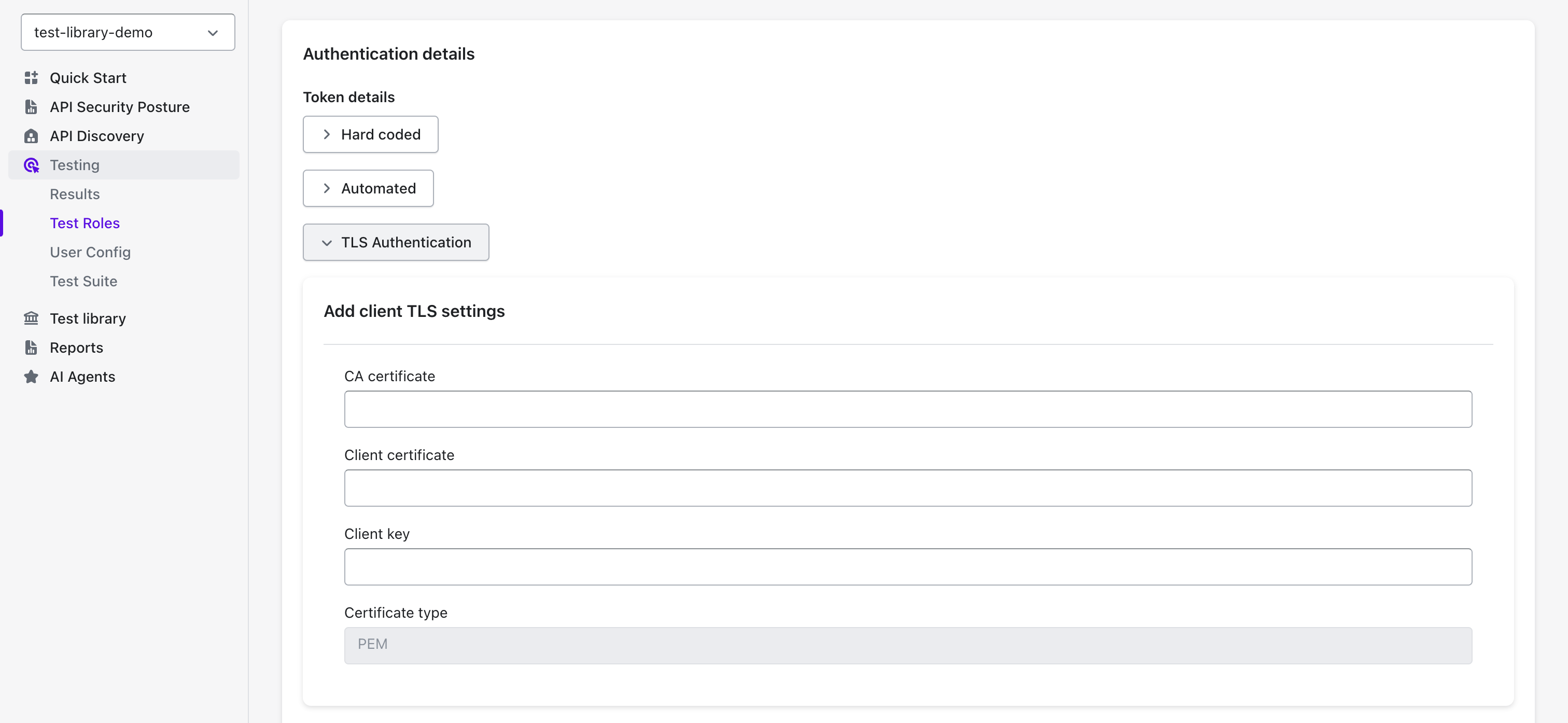
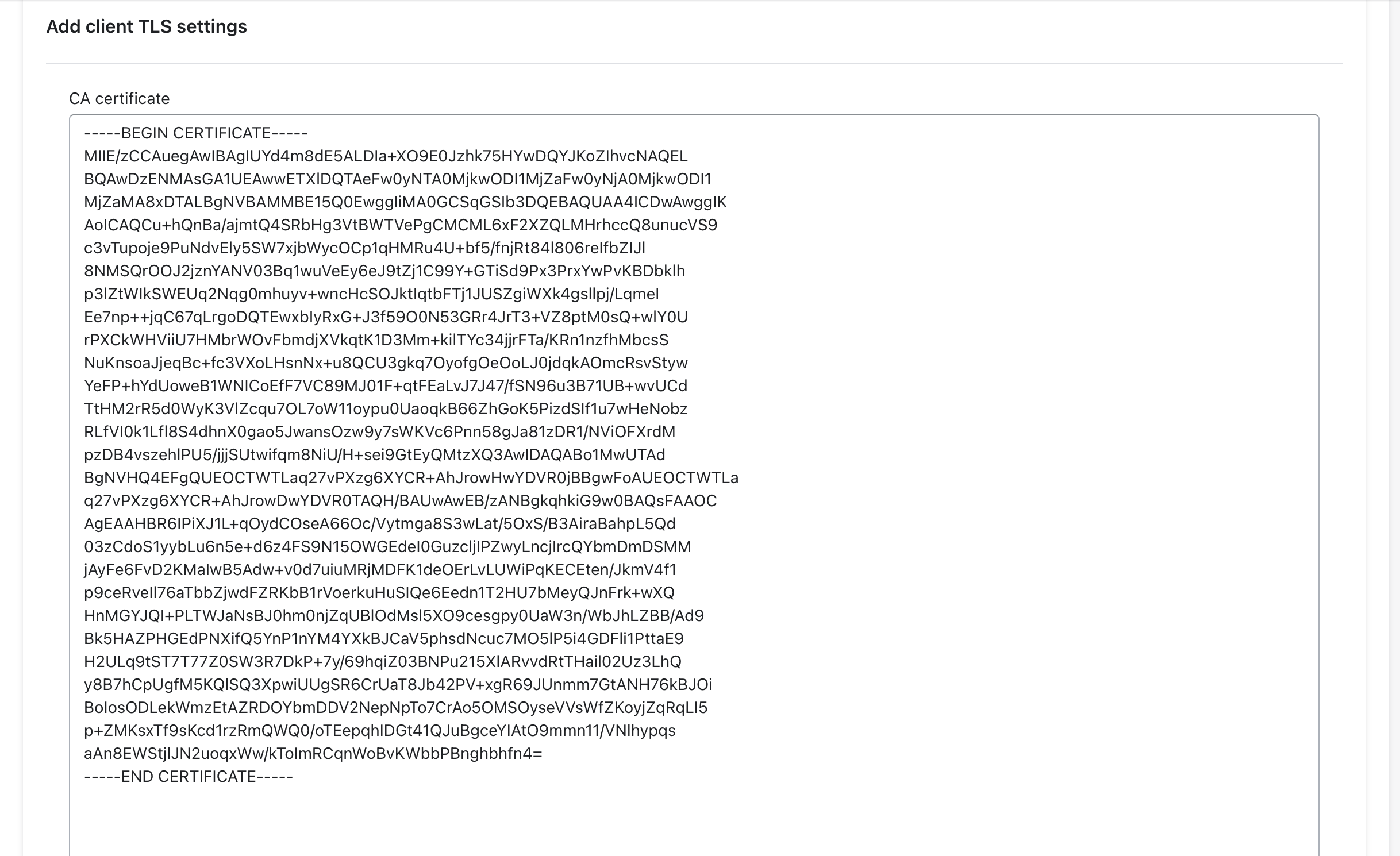
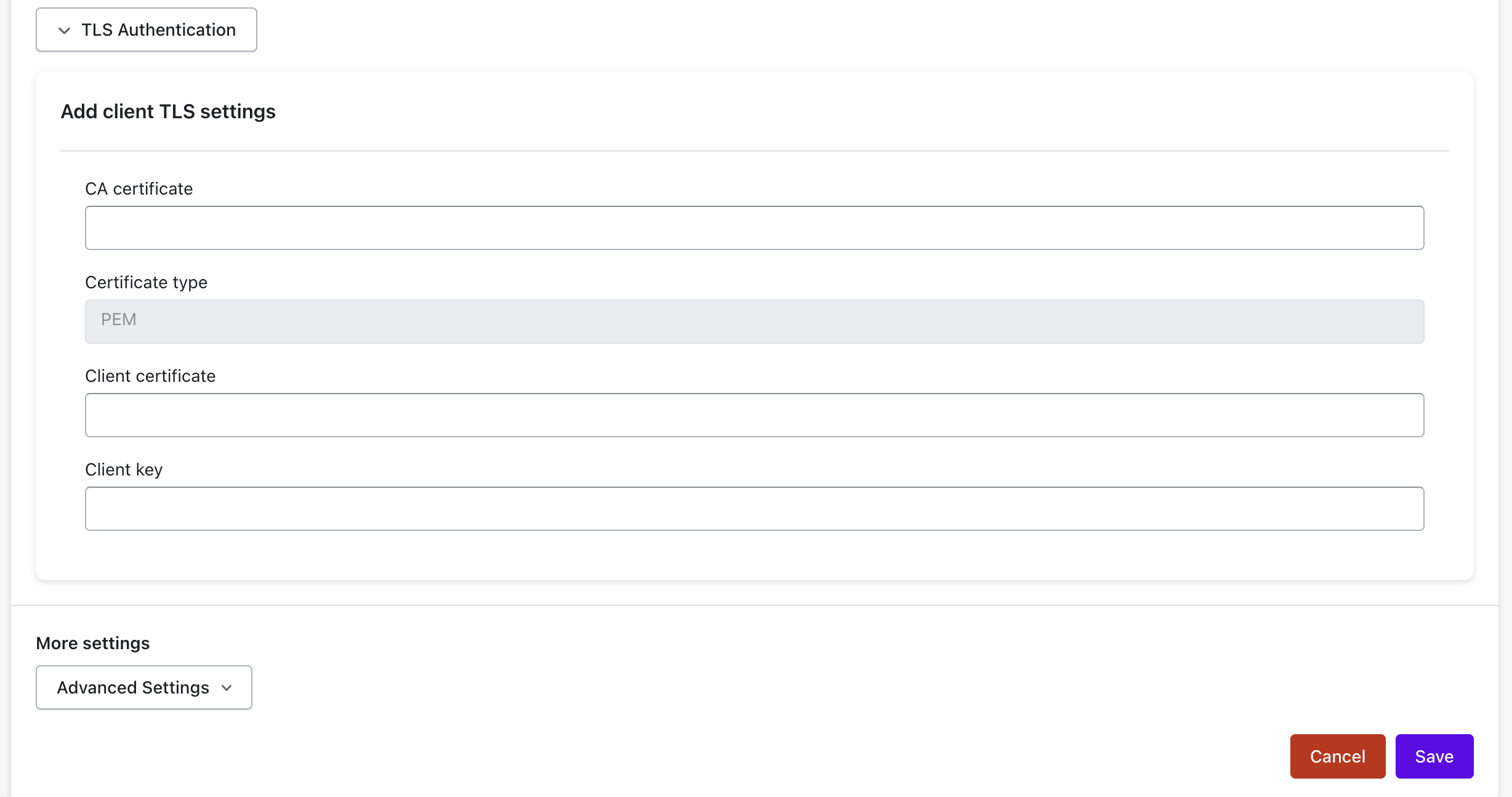
TLS Authentication

To add TLS authentication:

  1. Create a test role and click Add auth

  2. Click TLS Authentication

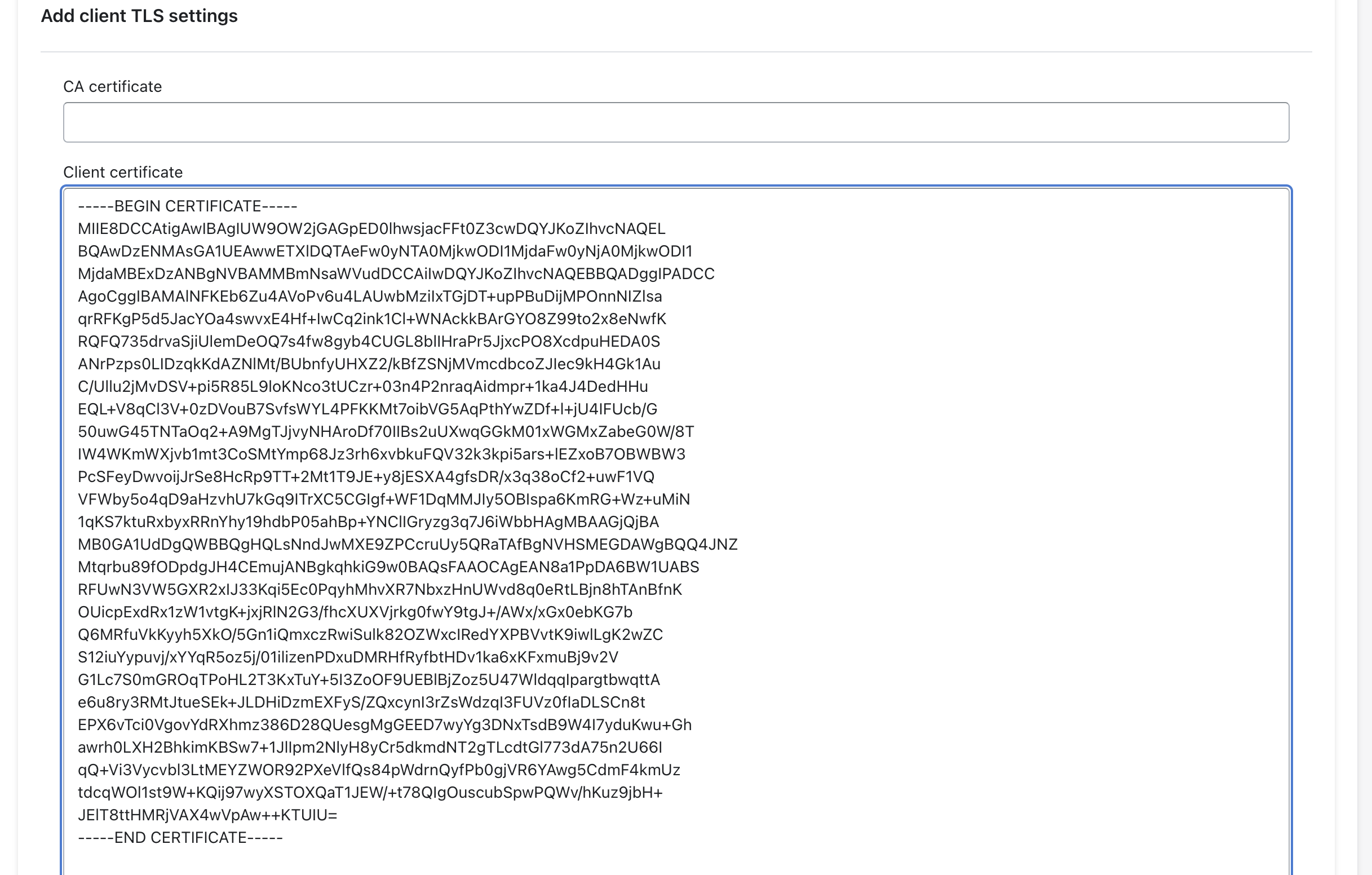
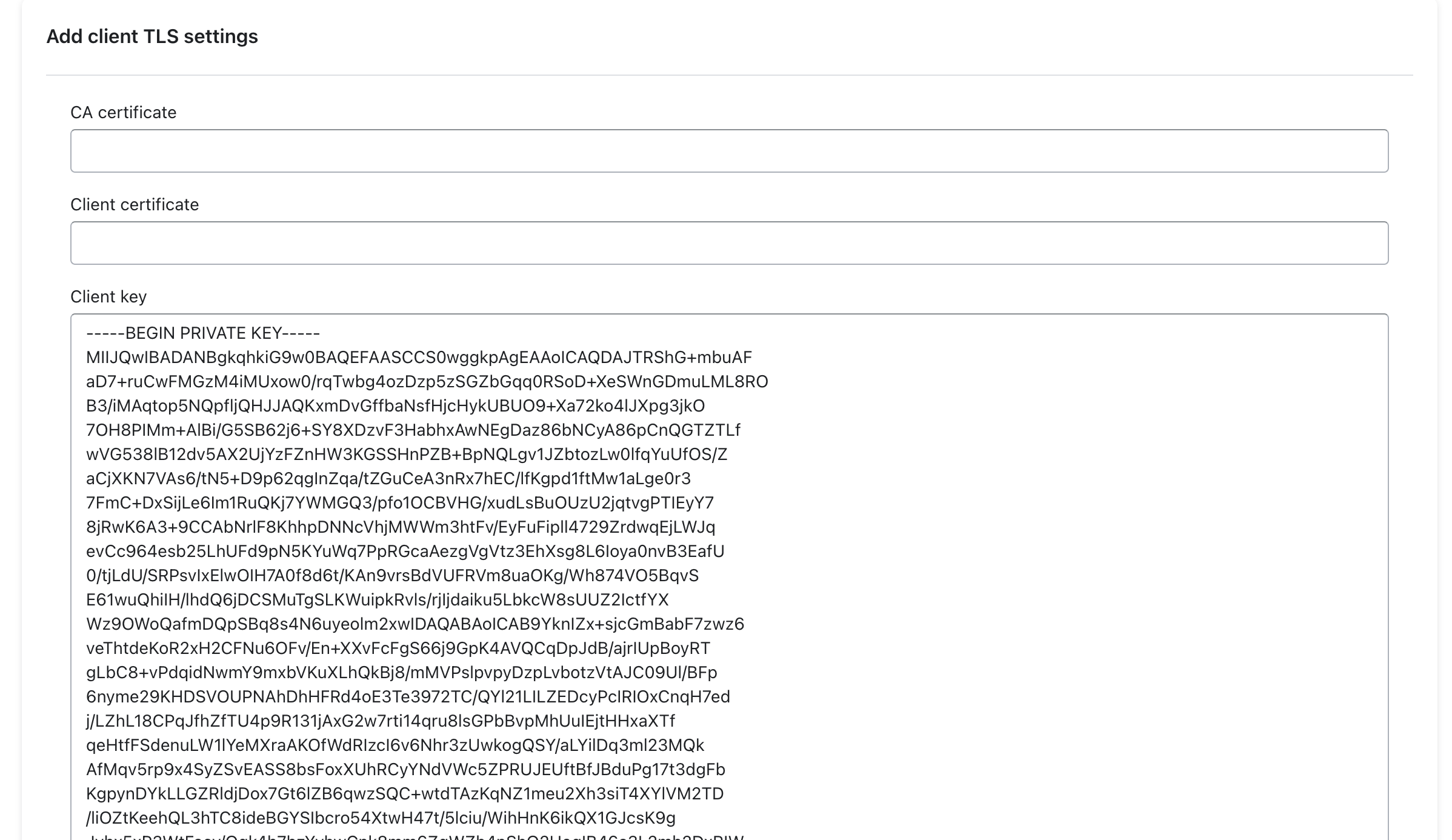
  3. For PEM certificate type:

    • Input the client certificate

    • Input the client private key

    • Input the certificate authority certificate (optional)

  4. Click Save

If you have a P12 type key, convert it to PEM using:

You can limit visibility of a Test Role using RBAC with the "Scope Role" dropdown. For details, see Restrict Access to a Test Role Using RBAC.

Last updated