> For the complete documentation index, see [llms.txt](https://ai-security-docs.akto.io/llms.txt). Markdown versions of documentation pages are available by appending `.md` to page URLs; this page is available as [Markdown](https://ai-security-docs.akto.io/integrations/azure-data-explorer.md).
# Azure Data Explorer
## Overview
The Azure Data Explorer integration allows you to export Akto Agentic security activity data into an Azure Data Explorer (ADX) database. With the integration you can have centralised analytics, long-term storage, and correlation with other operational data already present in ADX.
## Prerequisites
### Azure Data Explorer Cluster and Database Details
You need an existing Azure Data Explorer cluster and database and should have the **cluster endpoint** and the **database name** for the cluster being integrated.
{% hint style="warning" %}
If an Azure Data Explorer cluster does not exist, you can create one in the Azure portal before continuing.
{% endhint %}
### Azure App Registration
Akto uses an Azure App Registration for authentication with Azure Data Explorer.
**Create a New App Registration**
{% stepper %}
{% step %}
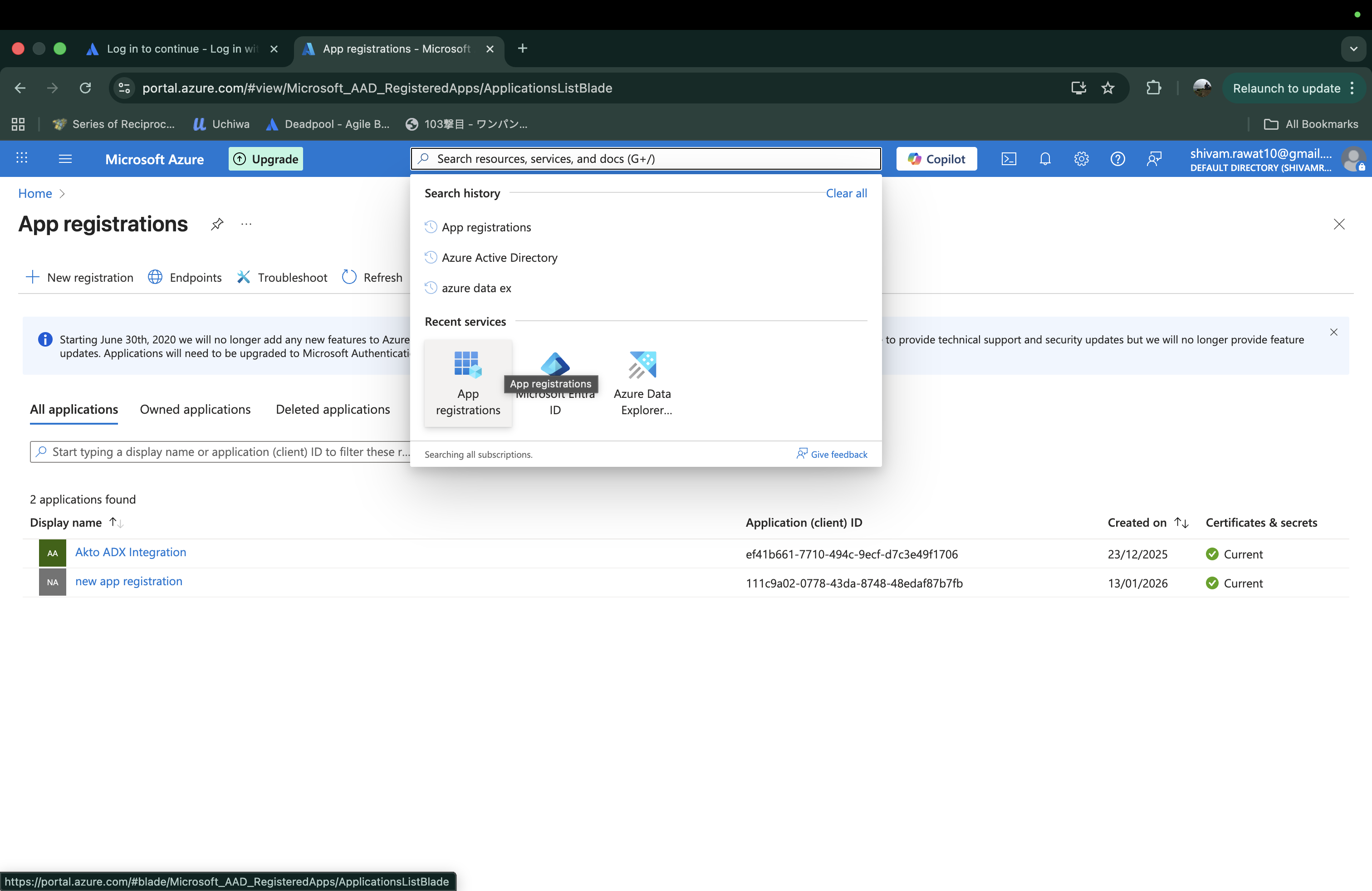
Open **App registrations** in the Azure portal.
{% endstep %}
{% step %}
Select **New registration** from the left navigation panel.
{% endstep %}
{% step %}
Enter a name for the application and set **Supported account types** to **Accounts in this organisational directory only (Single tenant)**.
{% endstep %}
{% step %}
Select **Register** to create the application.
{% endstep %}
{% endstepper %}
### **Generate Client Secret**
{% stepper %}
{% step %}
Open the newly created App Registration.
{% endstep %}
{% step %}
Navigate to **Certificates & secrets**.
{% endstep %}
{% step %}
Create a new **Client secret**.
{% endstep %}
{% step %}
Copy the **Client secret value** after creation.
{% endstep %}
{% step %}
Navigate back to the application overview page.
{% endstep %}
{% step %}
Copy the following identifiers:
* **Application (Client) ID**
* **Directory (Tenant) ID**
{% endstep %}
{% endstepper %}
{% hint style="warning" %}
**Azure Data Explorer Access Permissions**
The App Registration requires access to the Azure Data Explorer cluster being integrated.\
You should ensure that the registered application has permissions to write data into the target ADX database.
{% endhint %}
## Steps to Integrate ADX in Akto
{% stepper %}
{% step %}
**Open Integration Settings**
1. Log in to the Akto dashboard.
2. Navigate to **Settings → Integrations → Azure Data Explorer**.
3. The Azure Data Explorer configuration form is displayed.
{% endstep %}
{% step %}
**Configure the Integration**
Enter the following values in the configuration form:
* **Cluster Endpoint**
* **Database Name**
* **Tenant ID**
* **Application ID**
* **Application Key (Client Secret)**
Each value should match the Azure App Registration and Azure Data Explorer cluster configuration.
{% endstep %}
{% step %}
**Save the Configuration**
Select **Save** to complete the integration.
{% endstep %}
{% endstepper %}
Akto validates the credentials and establishes connectivity with Azure Data Explorer.
## Exporting Data to Azure Data Explorer
{% stepper %}
{% step %}
Open the **Akto** **Atlas** or **Argus** dashboard.
{% endstep %}
{% step %}
Navigate to **Guardrails → Guardrail Activity**.
{% endstep %}
{% step %}
Open the **More actions** menu in the top-right corner.
{% endstep %}
{% step %}
Select **Export to ADX (Azure Data Explorer)**.
{% endstep %}
{% endstepper %}
Akto exports the selected guardrail activity data to the configured Azure Data Explorer database.
## How Data Looks in ADX Cluster
After the export completes, the guardrail activity data appears as structured records in the Azure Data Explorer database.
You can query the exported data using KQL to support investigation, monitoring, and reporting workflows within Azure Data Explorer.