> For the complete documentation index, see [llms.txt](https://ai-security-docs.akto.io/llms.txt). Markdown versions of documentation pages are available by appending `.md` to page URLs; this page is available as [Markdown](https://ai-security-docs.akto.io/integrations/devrev.md).
# DevRev
This guide will help you set up DevRev Integration in Akto to automatically create and track security issues in your DevRev workspace.
{% hint style="success" %}
**Prerequisites**
Before setting up the DevRev Integration, ensure you have:
1. **DevRev Account**: An active DevRev organization account
2. **DevRev Personal Access Token (PAT)**: You'll need to generate a PAT with appropriate permissions
1. Navigate to your DevRev settings to create a new Personal Access Token
2. Ensure the token has permissions to create work items and access parts
3. **DevRev Organization URL**: Your organization's DevRev URL (e.g., `https://app.devrev.ai/your-org-slug`)
{% endhint %}
## Setting Up DevRev
{% stepper %}
{% step %}
**Navigate to Integrations Settings**
1. Log in to your Akto dashboard
2. Click on **Settings** in the main navigation menu
3. Select **Integrations** from the settings sidebar
{% endstep %}
{% step %}
**Select DevRev Integration**
1. On the Integrations page, locate the **DevRev** card
2. Click on the DevRev card to open the configuration page
{% endstep %}
{% step %}
**Enter DevRev Organization URL**
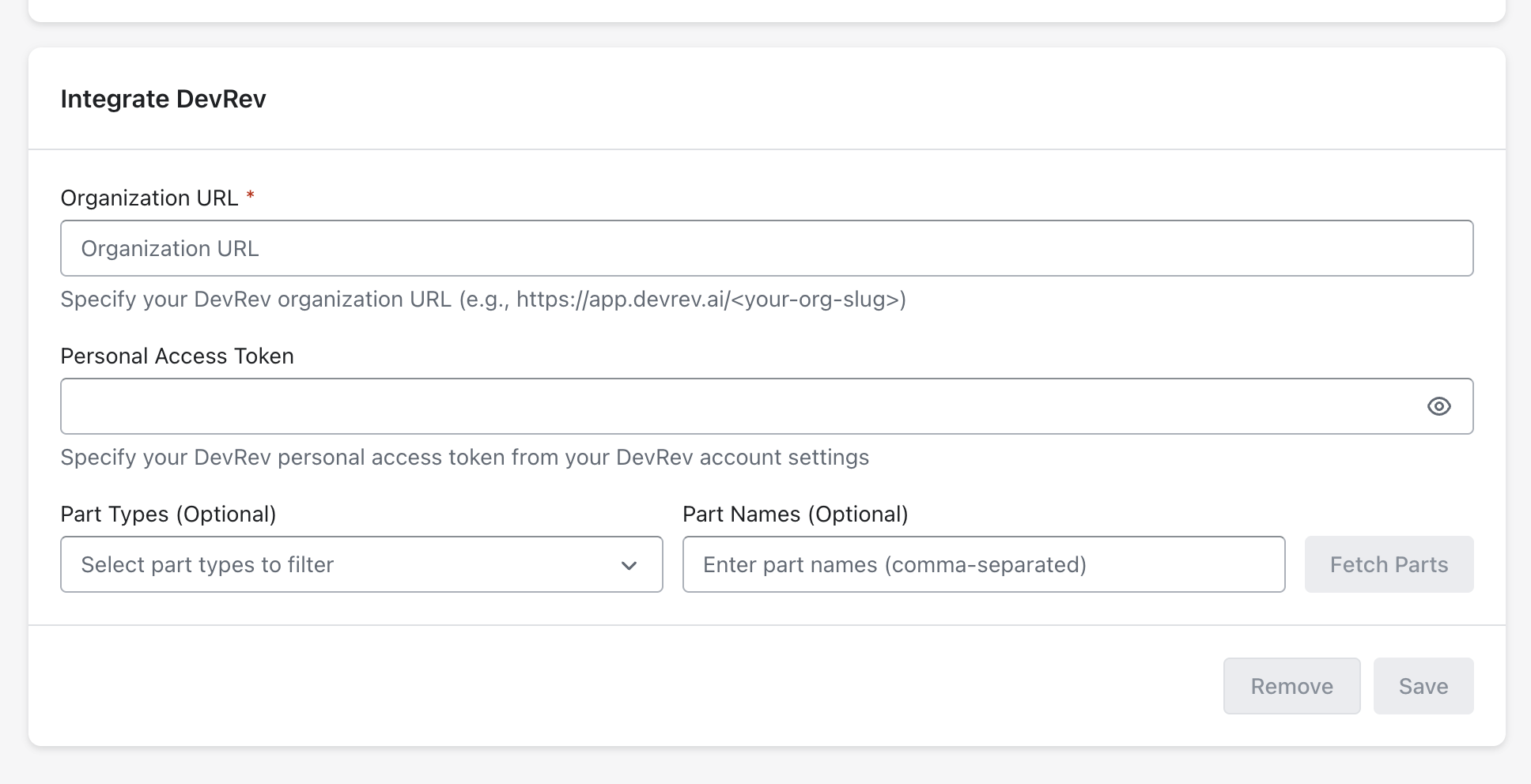
1. In the **DevRev Organization URL** field, enter your complete DevRev organization URL
* Example: `https://app.devrev.ai/your-org-slug`
2. Ensure the URL is correct and includes the protocol (https\://)
{% endstep %}
{% step %}
**Enter Personal Access Token**
1. In the **Personal Access Token** field, paste the PAT you generated from DevRev
2. Keep this token secure and do not share it
{% endstep %}
{% step %}
**Fetch DevRev Parts**
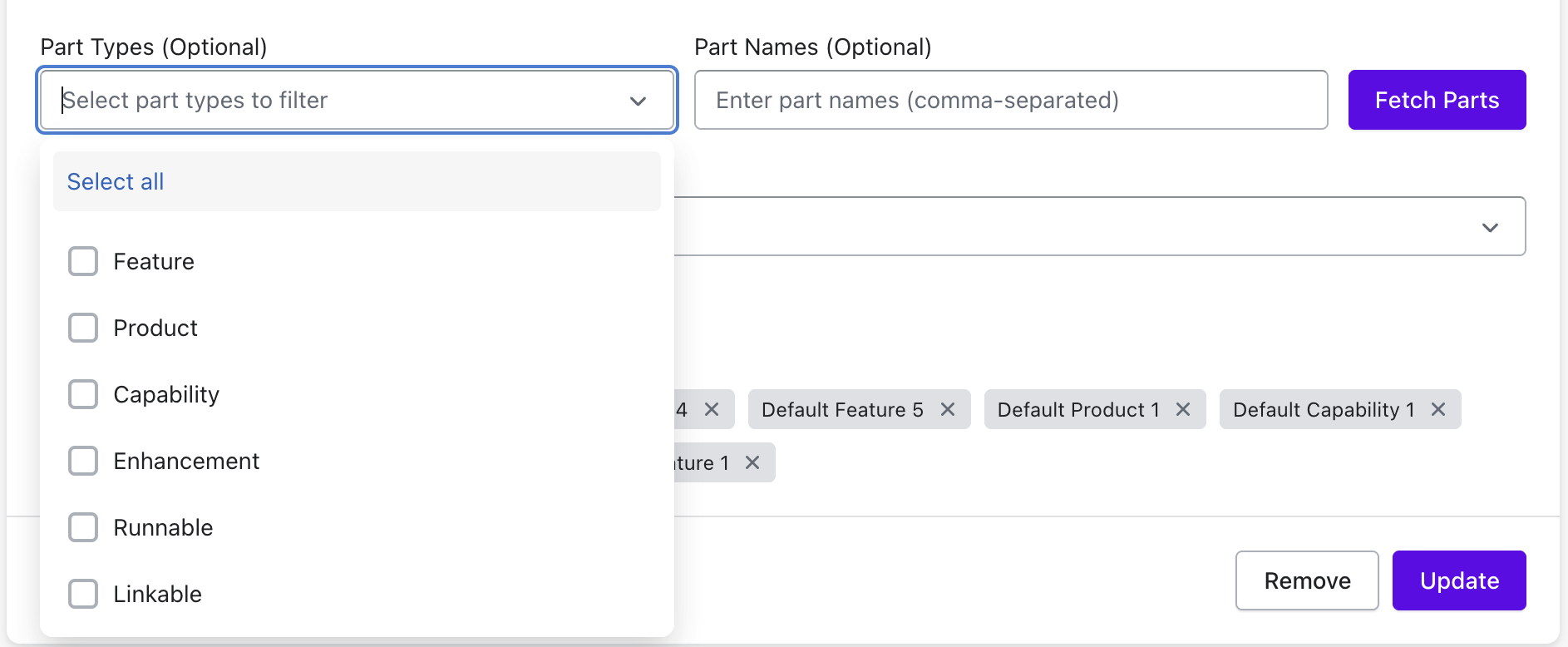
1. Select the **part type** filter to limit results to specific DevRev part categories.
2. Enter **part names** to restrict results to specific DevRev parts.
3. Click **Fetch Parts** to initiate the request.
{% hint style="info" %}
Both **part type** and **part name** filters are optional and help you fetch only the required parts instead of the complete list.
{% endhint %}
4. Akto connects to the DevRev API using the configured token and retrieves matching parts and projects.
{% hint style="success" %}
You can enter multiple part names by typing each part name exactly as defined, including letter case. Separate part names using commas to to add multiple parts.
{% endhint %}
{% endstep %}
{% step %}
**Save Configuration**
1. Click the **Save** button to store your DevRev integration configuration.
2. You'll see a success notification confirming the integration has been set up.
{% endstep %}
{% step %}
**Verify Integration**
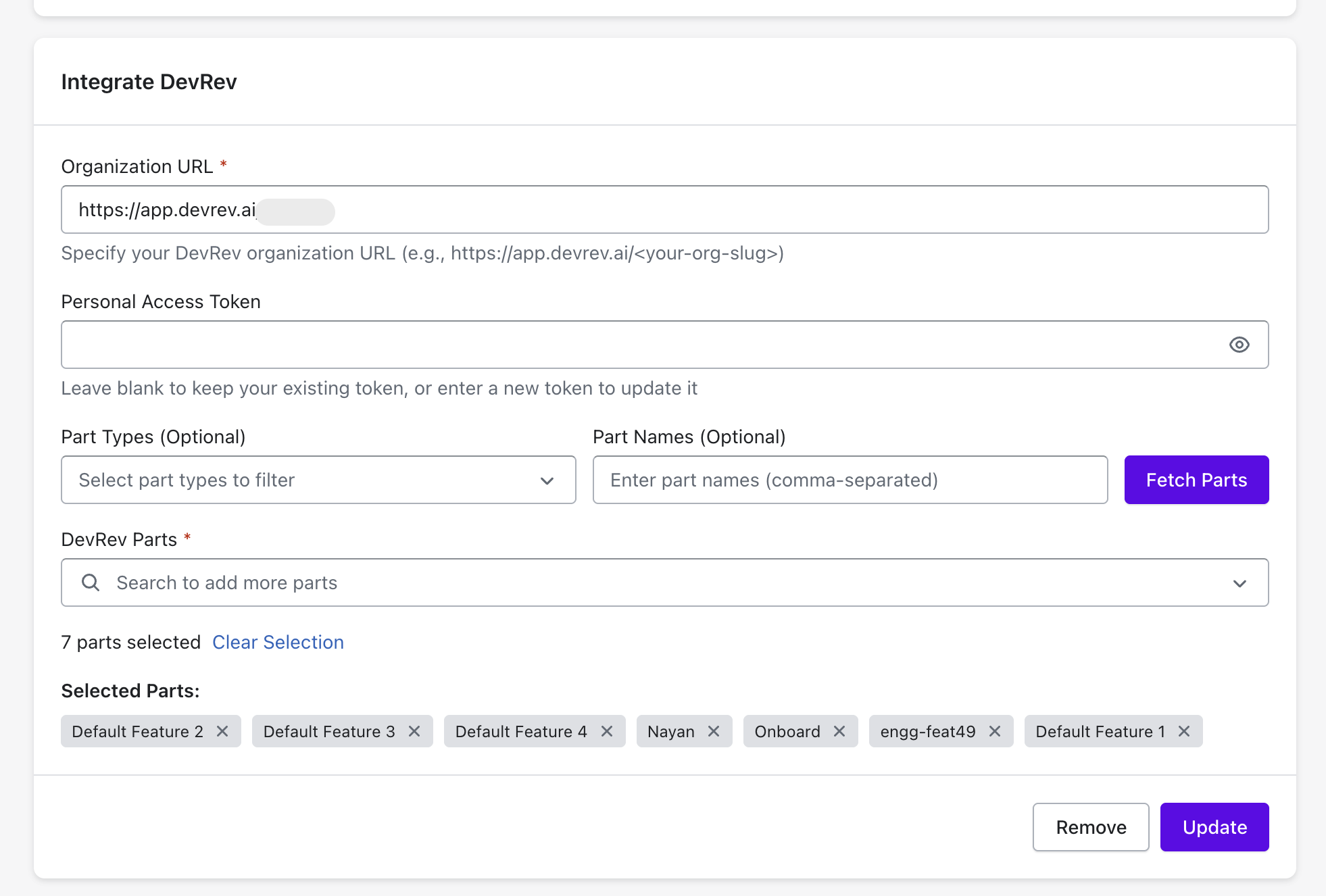
1. The page will now show your configured DevRev integration.
2. You should see the organisation URL and selected parts displayed.
{% endstep %}
{% endstepper %}
## Updating DevRev Integration
You can update your DevRev integration settings at any time.
{% stepper %}
{% step %}
**Return to DevRev Settings**
1. Navigate to **Settings** > **Integrations** > **DevRev.**
2. Your current configuration will be displayed.
{% endstep %}
{% step %}
**Modify Settings**
1. Update the **Organization URL** as required.
2. To update the **Personal Access Token**:
* Enter a new token in the field
* Or leave it blank to keep the existing token
3. Click **Fetch Parts** if you need to refresh the available parts.
4. Modify your selected parts as needed.
{% endstep %}
{% step %}
**Save Changes**
1. Click the **Update** button.
2. You'll see a confirmation that your integration has been updated.
{% endstep %}
{% endstepper %}
## Removing DevRev Integration
If you need to remove the DevRev integration:
{% stepper %}
{% step %}
**Access DevRev Settings**
1. Go to **Settings** > **Integrations** > **DevRev**
{% endstep %}
{% step %}
**Remove Integration**
1. Click the **Remove** button at the bottom of the page.
2. Confirm the removal when prompted.
3. The integration will be deleted from your Akto account.
{% endstep %}
{% step %}
**Verify Removal**
1. You'll be redirected back to the Integrations page.
2. The DevRev integration will no longer show as configured.
3. The "Create DevRev ticket" option will no longer appear in the Issues page.
{% endstep %}
{% endstepper %}
## Troubleshooting
### Issue: "Failed to fetch parts"
**Possible causes:**
* Invalid Personal Access Token
* Token doesn't have required permissions
* Network connectivity issues
* Incorrect Organization URL
**Solutions:**
1. Verify your Personal Access Token is valid in DevRev settings.
2. Generate a new token with proper permissions.
3. Check your network connection.
4. Ensure the Organization URL is correct.
### Issue: "Ticket creation failed"
**Possible causes:**
* No parts selected in configuration
* Token expired or revoked
* Selected part no longer exists in DevRev
**Solutions:**
1. Return to DevRev integration settings
2. Verify parts are selected
3. Update your Personal Access Token
4. Re-fetch parts to ensure they're current
### Issue: "Cannot see DevRev option in Issues page"
**Possible causes:**
* DevRev integration not configured
* Integration removed or failed
**Solutions:**
1. Verify DevRev integration is properly configured in Settings
2. Check that parts are selected
3. Try removing and re-adding the integration
## Get Support for your Akto setup
There are multiple ways to request support from Akto. We are 24X7 available on the following:
1. In-app `intercom` support. Message us with your query on intercom in Akto dashboard and someone will reply.
2. Join our [discord channel](https://www.akto.io/community) for community support.
3. Contact `help@akto.io` for email support.
4. Contact us [here](https://www.akto.io/contact-us).