> For the complete documentation index, see [llms.txt](https://ai-security-docs.akto.io/llms.txt). Markdown versions of documentation pages are available by appending `.md` to page URLs; this page is available as [Markdown](https://ai-security-docs.akto.io/agentic-guardrails/how-to/manage-guardrail-policies.md).
# Manage Guardrail Policies
## Overview
The **Manage Guardrail Policies** page allows you to maintain existing guardrail policies that govern agent behavior in your environment. You can edit policy configurations, disable policies without deletion, or permanently remove policies based on operational requirements.
## Edit Guardrail Policy
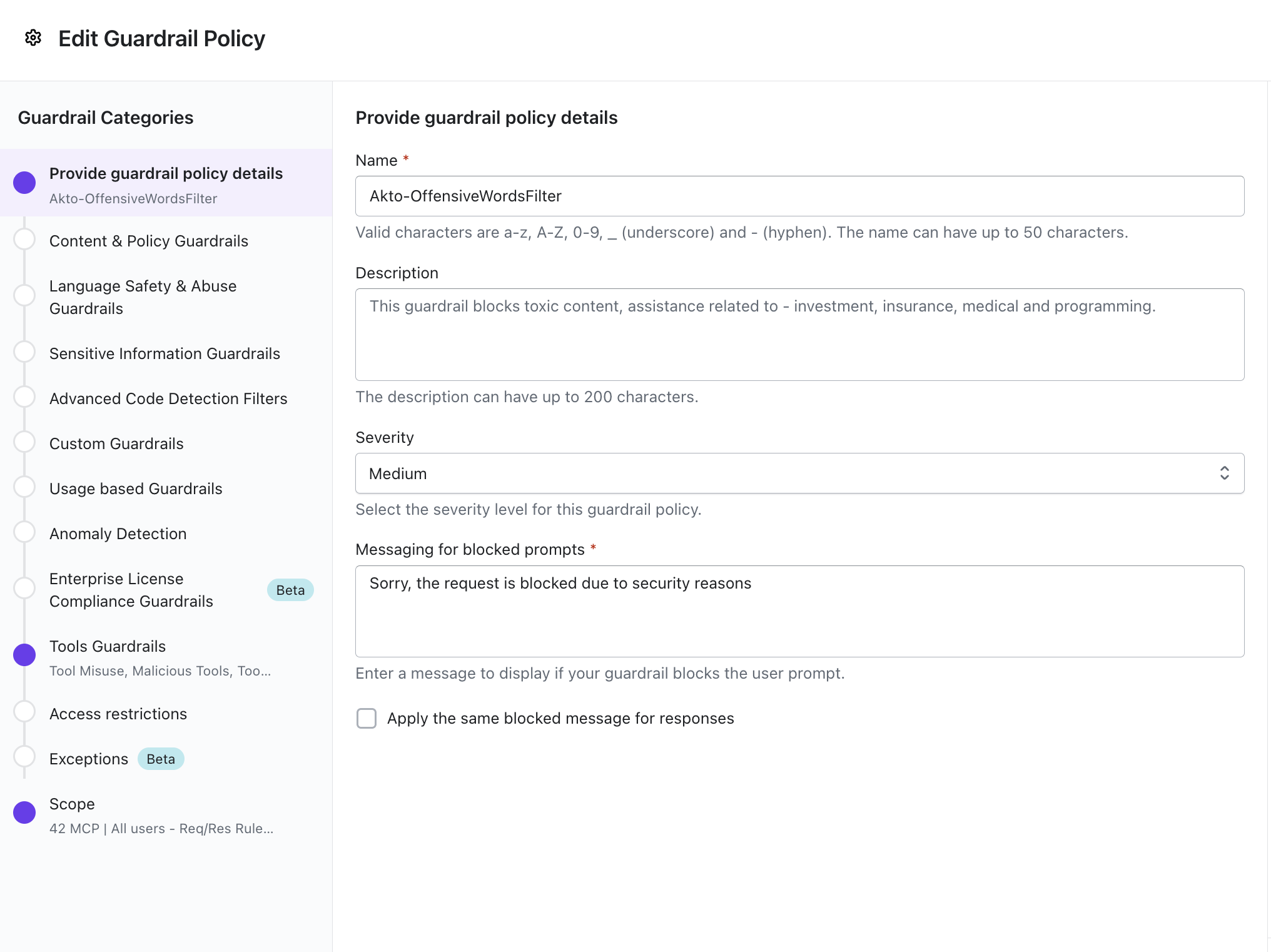
You can modify an existing guardrail policy to adjust enforcement behavior or configuration parameters.
### **Steps**
{% stepper %}
{% step %}
Navigate to the **Agentic Security** product.
{% endstep %}
{% step %}
Select **Agentic Guardrails → Guardrail Policies** from the left navigation.
{% endstep %}
{% step %}
From the guardrail policies list, select the policy to edit.
{% endstep %}
{% step %}
Review the **configuration settings** displayed in the guardrail policy form.
{% endstep %}
{% step %}
Modify the required configuration settings.
Learn more about configuration from [here](/agentic-guardrails/how-to/create-guardrail-policies.md#access-guardrail-policies).
{% endstep %}
{% step %}
Click **Update Guardrail** at the bottom-left of the form to save changes.
{% endstep %}
{% endstepper %}
The updated guardrail policy is applied immediately across applicable agent interactions.
## Disable Policy
You can disable a guardrail policy without deleting the policy configuration.
### **Steps**
{% stepper %}
{% step %}
Locate the required policy in the guardrail policies list.
{% endstep %}
{% step %}
Open the **horizontal dot menu** at the end of the policy row.
{% endstep %}
{% step %}
Select **Disable Policy**.
{% endstep %}
{% step %}
Confirm the action in the confirmation dialog.
{% endstep %}
{% endstepper %}
The policy status then changes to **Inactive**, and enforcement stops for that policy while preserving configuration data.
{% hint style="info" %}
**Additional Option**
* Select **View Details** from the same menu to open the guardrail policy form.
* Update configuration settings directly from the policy form if required.
{% endhint %}
### Delete the Policy
You can permanently remove one or more guardrail policies.
### **Steps**
{% stepper %}
{% step %}
Select the checkbox at the start of each policy row to mark policies for deletion.
{% endstep %}
{% step %}
Locate the **Delete** option at the bottom-center of the screen.
{% endstep %}
{% step %}
Click **Delete**.
{% endstep %}
{% step %}
Confirm the deletion action.
{% endstep %}
{% endstepper %}
The selected guardrail policies are permanently removed and no longer available for enforcement or recovery.
.png?alt=media)
.png?alt=media)