> For the complete documentation index, see [llms.txt](https://ai-security-docs.akto.io/llms.txt). Markdown versions of documentation pages are available by appending `.md` to page URLs; this page is available as [Markdown](https://ai-security-docs.akto.io/akto-atlas-agentic-ai-security-for-employee-endpoints/nhi-governance/policies.md).
# Create NHI Policies
## Overview
The **Create NHI Policy** page allows you to define governance rules for Non-Human Identities discovered across employee endpoints. Each policy is built from a set of policy categories token segregation, expiration tracking, and rotation enforcement that Akto evaluates continuously against every NHI in scope.
When a NHI breaches a rule in an active policy, Akto raises a violation in the [Violations](/akto-atlas-agentic-ai-security-for-employee-endpoints/nhi-governance/violations.md) view and links it to the specific policy that was triggered.
## Access NHI Policies
You can access NHI policy configuration from the Akto Atlas console.
* Navigate to **Akto Atlas**.
* Select **NHI Governance → Policies**.
The policies list displays all existing NHI policies and provides access to policy creation.
## Create an NHI Policy
### Access the Create Policy Form
1. Locate the **Create Policy** button at the top-right corner of the Policies page.
2. Select **Create Policy** to open the policy configuration wizard.
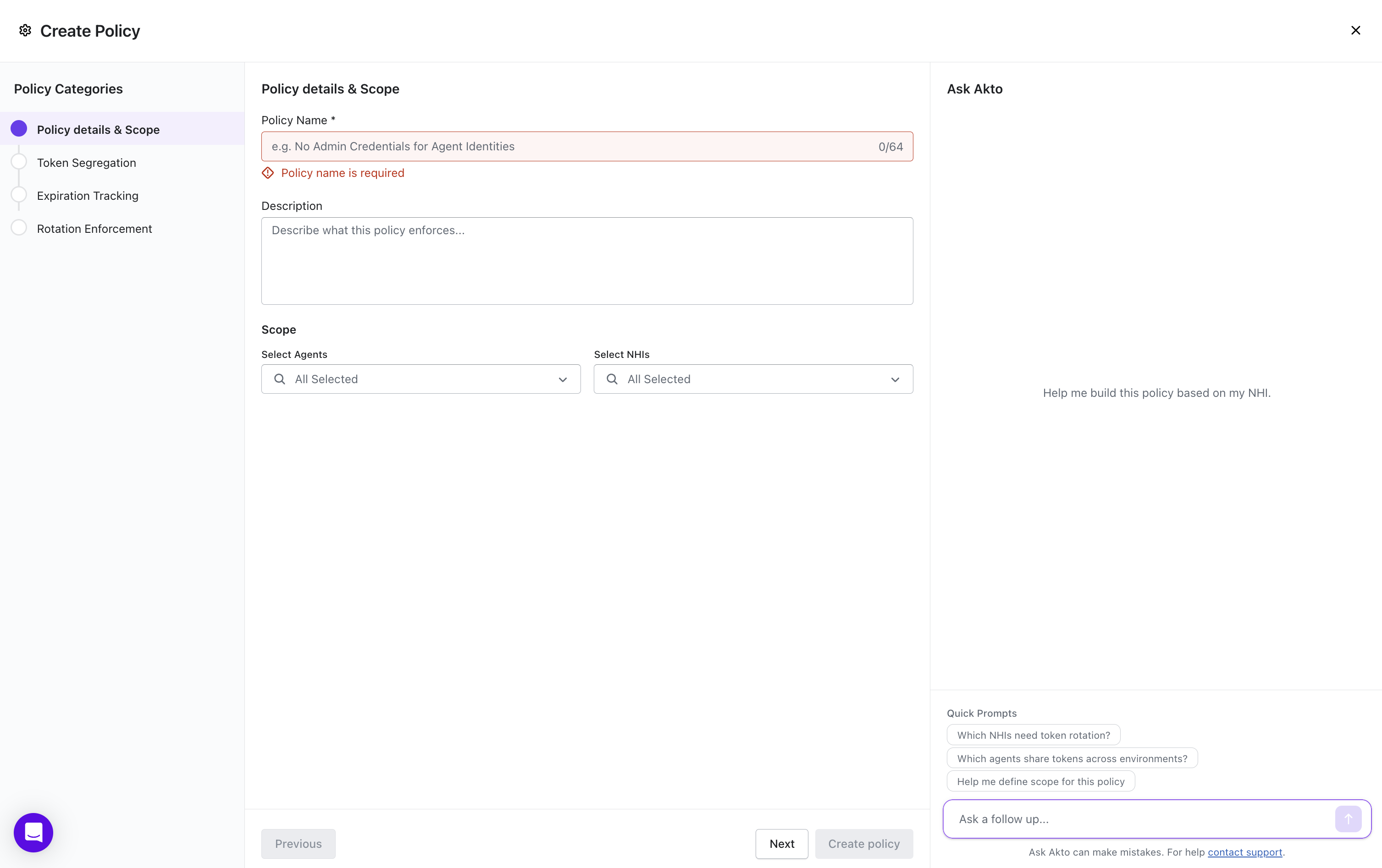
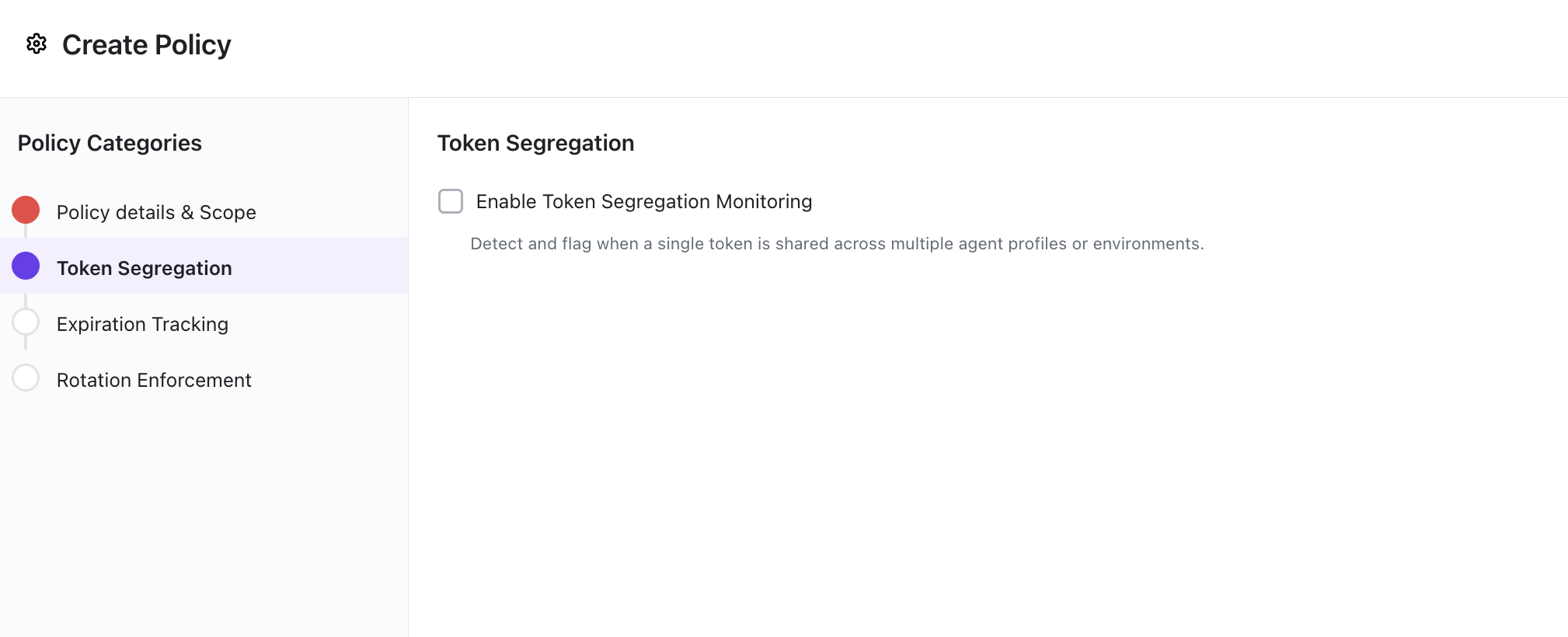
The wizard walks through four policy categories in sequence. The left panel shows your progress across the steps a red indicator means a required field in that step is incomplete.
### Configure the Policy
1. Policy Details & Scope (Required)
This step defines the identity and scope of the policy.
**Policy Name**
Enter a name that describes what the policy enforces (e.g. `No Admin Credentials for Agent Identities`). The name is required and limited to 64 characters.
**Description**
Optionally provide a plain-language description of what the policy enforces. This helps other administrators understand the intent of the rule without reading its configuration.
**Scope**
Control which NHIs and agents the policy applies to.
* **Select Agents** choose specific agentic assets (e.g. Claude CLI, Cursor, Windsurf) to target. Defaults to all agents.
* **Select NHIs** choose specific identities to target. Defaults to all discovered NHIs.
Narrowing scope reduces noise by applying the policy only to the identities and agents where the rule is relevant.
{% hint style="info" %}
Policy name is required. You cannot advance past this step or save the policy without providing a name.
{% endhint %}
2. Token Segregation
**Enable Token Segregation Monitoring**
When enabled, Akto detects and flags cases where a single token is shared across multiple agent profiles or environments.
Shared credentials increase the blast radius of a compromise one leaked token can grant access across multiple unrelated services. This rule raises a violation when the same identity is observed on more than one distinct agent profile or environment.
3. Expiration Tracking
**Enable Token Lifecycle Tracking**
When enabled, Akto monitors token validity and flags credentials approaching their expiration date. This allows you to act before a token expires and causes service disruption or an undetected security gap.
**Flag already expired tokens in active use**
When enabled, Akto detects API calls or actions performed by an agent using an expired token. An expired token still in active use may indicate a misconfiguration where a tool was not updated after rotation or a security risk where an attacker is deliberately replaying a stolen credential.
4. Rotation Enforcement
**Enable Rotation Enforcement**
When enabled, Akto requires all API keys and tokens in scope to be rotated within a set number of days.
* Credentials that have passed the rotation deadline trigger a **High-severity violation**.
* Credentials approaching the rotation deadline trigger a **Medium-severity reminder violation**.
### Save the Policy
After completing the required and optional configuration steps:
* Select **Create Policy** to save the policy and begin enforcement against all NHIs in scope.
Akto evaluates the new policy against all existing identities immediately. Violations are raised for any NHI that already breaches a rule at the time of creation, and the policy continues to evaluate new identities as they are discovered.
## What's Next
After creating a policy, you can review the violations it has raised in the [Violations](/akto-atlas-agentic-ai-security-for-employee-endpoints/nhi-governance/violations.md) view. Each violation is linked to the specific policy rule that triggered it.
To modify, disable, or delete an existing policy, select it from the Policies list and use the options in the policy detail view.