# MDM Deployment
## Overview
Akto MCP Endpoint Shield provides **enterprise-grade Mobile Device Management (MDM) support** for seamless deployment and centralized management across your organization's devices.
### Why MDM Integration Matters
In enterprise environments, manually configuring security tools on hundreds or thousands of developer machines is impractical. MDM support enables:
* **Zero-touch deployment** across all managed devices
* **Centralized configuration** and policy management
* **Automated updates** and patch management
* **Compliance enforcement** and audit trails
* **Remote monitoring** of security posture
### Supported MDM Platforms
Akto MCP Endpoint Shield integrates with leading MDM solutions:
* ✅ **Microsoft Intune** (Windows, macOS)
* ✅ **Jamf Pro** (macOS, iOS)
* ✅ **Workspace ONE** (VMware)
* ✅ **Kandji** (macOS)
* ✅ **Mosyle** (Apple devices)
* ✅ **ManageEngine** (Cross-platform)
* ✅ **IBM MaaS360**
* ✅ **Any standard MDM** supporting package deployment
### Key MDM Capabilities
**1. Automated Deployment**
* **Silent installation** without user interaction
* **Pre-configured API tokens** pushed via MDM profiles
* **Automatic service startup** on device enrollment
* **Version control** and automated updates
**2. Centralized Configuration**
* **Configuration profiles** for standard settings
* **Environment variables** managed via MDM
* **Policy enforcement** (blocking vs. monitoring mode)
* **Custom server lists** and whitelist management
**3. Compliance & Monitoring**
* **Health check reporting** back to MDM console
* **Installation verification** via scripts
* **Log collection** for security audits
* **Compliance dashboards** in Akto platform
## Prerequisites
* Active Akto account with API token
* MDM platform with package deployment capability
* Administrator access to MDM console
* MCP Endpoint Shield installer package (.pkg for macOS, .msi for Windows, .deb for Linux)
## Step 1: Prepare the Installation Package
### **For macOS (Jamf Pro, Intune, Kandji)**
{% stepper %}
{% step %}
**Download the installer**
* Contact Akto Support to get `akto-mcp-endpoint-shield.pkg`
* The `.pkg` file is **signed and notarized** by Apple for secure installation
* **Developer ID:** Akto, Inc.
* **Notarization:** Apple-verified for Gatekeeper compatibility
* Upload to your MDM file repository
**Why signing and notarization matters:**
* ✅ **Passes Gatekeeper checks** on macOS 10.15+ without manual overrides
* ✅ **No security warnings** during installation
* ✅ **Compatible with MDM silent installs** (no user interaction required)
* ✅ **Trusted by Apple** - package integrity verified
* ✅ **Meets enterprise security policies** for managed devices
{% endstep %}
{% step %}
**Create a configuration profile:**
```xml
PayloadContent
PayloadType
com.apple.ManagedClient.preferences
PayloadIdentifier
com.akto.mcp-endpoint-shield.config
PayloadDisplayName
Akto MCP Endpoint Shield Configuration
PayloadEnabled
PayloadUUID
GENERATE-UUID-HERE
PayloadVersion
1
PayloadContent
AKTO_API_TOKEN
YOUR-AKTO-API-TOKEN-HERE
AKTO_PROJECT_NAME
default
AKTO_SKIP_THREAT
false
```
{% endstep %}
{% step %}
**Upload to MDM:**
* Navigate to **Configuration Profiles** section
* Upload the `.plist` configuration
* Assign to target device groups
{% endstep %}
{% endstepper %}
### **For Windows (Intune, ManageEngine)**
{% stepper %}
{% step %}
**Download the installer:**
* Contact Akto Support to get `akto-mcp-endpoint-shield.msi`
* Upload to your MDM software repository
{% endstep %}
{% step %}
**Create installation script:**
```powershell
# install-mcp-shield.ps1
$ErrorActionPreference = "Stop"
# Set environment variables
[System.Environment]::SetEnvironmentVariable("AKTO_API_TOKEN", "YOUR-AKTO-API-TOKEN", [System.EnvironmentVariableTarget]::Machine)
[System.Environment]::SetEnvironmentVariable("AKTO_PROJECT_NAME", "default", [System.EnvironmentVariableTarget]::Machine)
# Install package
Start-Process msiexec.exe -ArgumentList "/i akto-mcp-endpoint-shield.msi /quiet /norestart" -Wait
# Verify installation
$serviceName = "MCP-Endpoint-Shield"
$service = Get-Service -Name $serviceName -ErrorAction SilentlyContinue
if ($service.Status -eq "Running") {
Write-Output "Installation successful - Service is running"
exit 0
} else {
Write-Error "Installation failed - Service not running"
exit 1
}
```
{% endstep %}
{% step %}
**Configure in Intune:**
* Go to **Apps** → **Windows apps** → **Add**
* Select **Line-of-business app**
* Upload the `.msi` file
* Add the PowerShell script as a post-install action
* Assign to device groups
{% endstep %}
{% endstepper %}
### **For Linux (Fleet, Canonical Landscape)**
{% stepper %}
{% step %}
**Download the installer:**
```bash
# Contact Akto Support for .deb or .rpm package
wget https://akto-releases.example.com/mcp-endpoint-shield_latest_amd64.deb
```
{% endstep %}
{% step %}
**Create deployment script:**
```bash
#!/bin/bash
# deploy-mcp-shield.sh
# Set environment variables
echo 'export AKTO_API_TOKEN="YOUR-AKTO-API-TOKEN"' >> /etc/environment
echo 'export AKTO_PROJECT_NAME="default"' >> /etc/environment
# Install package
dpkg -i akto-mcp-endpoint-shield_latest_amd64.deb
# Enable and start service
systemctl enable mcp-endpoint-shield-agent
systemctl start mcp-endpoint-shield-agent
systemctl enable mcp-endpoint-shield
# Verify
systemctl is-active mcp-endpoint-shield-agent
```
{% endstep %}
{% step %}
**Deploy via MDM:**
* Use your MDM's script execution capability
* Schedule deployment to target device groups
* Set execution frequency (one-time for new devices)
{% endstep %}
{% endstepper %}
## Step 2: Configure Auto-Discovery Settings
The agent will automatically discover and protect MCP servers. However, you can customize behavior via MDM-managed configuration files.
#### **Create Custom Policy File**
**Location:** `/etc/akto-mcp-endpoint-shield/policy.json` (Linux/macOS) or `C:\ProgramData\Akto\mcp-endpoint-shield\policy.json` (Windows)
**Example policy:**
```json
{
"autoDiscovery": {
"enabled": true,
"clients": ["cursor", "vscode", "claude"],
"autoWrap": true
},
"security": {
"blockUnsafe": true,
"logLevel": "info",
"auditMode": false
},
"allowlist": {
"servers": [
"filesystem",
"postgres",
"brave-search"
]
},
"notifications": {
"webhook": "https://your-company.com/security-alerts",
"emailAlerts": true
}
}
```
#### **Deploy Policy via MDM**
**For Jamf:**
```bash
#!/bin/bash
# Deploy as a policy script
mkdir -p /etc/akto-mcp-endpoint-shield
cat > /etc/akto-mcp-endpoint-shield/policy.json << 'EOF'
{
"autoDiscovery": {"enabled": true, "clients": ["cursor", "vscode", "claude"], "autoWrap": true},
"security": {"blockUnsafe": true, "logLevel": "info"}
}
EOF
chmod 644 /etc/akto-mcp-endpoint-shield/policy.json
```
**For Intune:**
* Create a **Device Configuration Profile**
* Use **Custom Settings** for file deployment
* Upload `policy.json` to target path
## Step 3: Deploy to Target Devices
#### **Scope Configuration**
**Define device groups:**
* **Engineering\_Developers** → Full deployment with auto-wrap enabled
* **Security\_Team** → Deployment with audit mode enabled
* **Contractors** → Strict blocking mode with limited allowlist
**Example Jamf Smart Group:**
```
Criteria:
- Department is "Engineering"
- Operating System like "macOS 13%"
- Application Title has "Cursor" OR "Visual Studio Code"
```
#### **Deployment Schedule**
**Staged rollout recommended:**
1. **Pilot group** (10-20 users) → Week 1
2. **Early adopters** (100 users) → Week 2
3. **Full deployment** → Week 3+
**Installation Command Examples**
* **Jamf:**
```bash
sudo installer -pkg /path/to/akto-mcp-endpoint-shield.pkg -target /
```
* **Intune:**
```powershell
msiexec /i akto-mcp-endpoint-shield.msi /qn /norestart AKTO_API_TOKEN="YOUR-TOKEN"
```
* **Fleet:**
```bash
dpkg -i akto-mcp-endpoint-shield.deb && systemctl enable --now mcp-endpoint-shield-agent
```
## Step 4: Verify Deployment Status
#### **Check Installation via MDM Console**
{% tabs %}
{% tab title="For Jamf Pro" %}
1. Navigate to **Computers** → **Inventory**
2. Search for application: `Akto MCP Endpoint Shield`
3. View **Installation Status** and **Version**
{% endtab %}
{% tab title="For Microsoft Intune:" %}
1. Go to **Apps** → **All apps** → `Akto MCP Endpoint Shield`
2. Check **Device install status**
3. Review **Installation errors** if any
{% endtab %}
{% endtabs %}
**Automated Health Check Script**
Deploy this script via MDM to verify installation:
{% tabs %}
{% tab title="macOS/Linux" %}
```bash
#!/bin/bash
# health-check-mcp-shield.sh
# Check if binary exists
if [ ! -f "/usr/local/bin/mcp-endpoint-shield" ]; then
echo "ERROR: Binary not found"
exit 1
fi
# Check if agent is running
if ! pgrep -f "mcp-endpoint-shield agent" > /dev/null; then
echo "ERROR: Agent not running"
exit 1
fi
# Check configuration
if [ ! -f "$HOME/.akto-mcp-endpoint-shield/logs/agent.log" ]; then
echo "WARNING: No agent logs found"
exit 2
fi
# Check API token
if [ -z "$AKTO_API_TOKEN" ]; then
echo "ERROR: API token not set"
exit 1
fi
echo "SUCCESS: MCP Shield is properly configured"
exit 0
```
{% endtab %}
{% tab title="Windows" %}
```powershell
# health-check-mcp-shield.ps1
$ErrorActionPreference = "Stop"
# Check service
$service = Get-Service -Name "MCP-Endpoint-Shield" -ErrorAction SilentlyContinue
if ($service.Status -ne "Running") {
Write-Output "ERROR: Service not running"
exit 1
}
# Check API token
$token = [System.Environment]::GetEnvironmentVariable("AKTO_API_TOKEN", [System.EnvironmentVariableTarget]::Machine)
if ([string]::IsNullOrEmpty($token)) {
Write-Output "ERROR: API token not configured"
exit 1
}
Write-Output "SUCCESS: MCP Shield is properly configured"
exit 0
```
{% endtab %}
{% endtabs %}
#### **Schedule in MDM:**
* **Frequency:** Daily
* **Remediation:** Auto-restart service if failed
* **Alerting:** Notify security team on repeated failures
## Step 5: Monitor and Maintain
#### **Centralized Logging**
**Configure log forwarding to SIEM:**
**For Splunk:**
```conf
# /opt/splunkforwarder/etc/apps/akto-mcp/inputs.conf
[monitor:///var/log/akto-mcp-endpoint-shield/*.log]
disabled = false
index = security
sourcetype = akto:mcp:shield
```
**For Azure Sentinel:**
```json
{
"type": "CustomLogs",
"customLogName": "AktoMCPShield",
"path": "/var/log/akto-mcp-endpoint-shield/*.log",
"recordDelimiter": "\n",
"parseTimestamp": true
}
```
#### **Update Management**
**Automatic updates via MDM:**
**Jamf Patch Management:**
1. Subscribe to Akto MCP Shield patch definition
2. Set auto-update policy: **Install updates within 7 days**
3. Test updates on pilot group first
**Intune Update Ring:**
```powershell
# update-mcp-shield.ps1
$latestVersion = "1.2.3" # Fetched from Akto release API
$installedVersion = (Get-ItemProperty HKLM:\Software\Akto\MCPShield).Version
if ($installedVersion -lt $latestVersion) {
Start-Process msiexec.exe -ArgumentList "/i akto-mcp-endpoint-shield-$latestVersion.msi /quiet /norestart" -Wait
}
```
#### **Compliance Reporting**
**Key metrics to track:**
* Installation success rate (target: >95%)
* Agent uptime (target: >99%)
* Policy violations detected per device
* Blocked threats count
* Configuration drift incidents
**View in Akto Dashboard:**
* Navigate to **MCP Shield** → **Enterprise Console**
* Filter by MDM deployment group
* Export compliance reports for audits
#### 🔍 Auto-Detection
Akto MCP Endpoint Shield automatically detects MCP client configurations:
* **Cursor** → Reads `~/.cursor/mcp.json`
* **Visual Studio Code** → Reads `.vscode/mcp.json` inside your workspace
* **Claude Desktop** → Reads Claude’s MCP config JSON
For each detected MCP server config:
1. The JSON file is parsed.
2. Each server entry is automatically wrapped with **Akto MCP Endpoint Shield**.
3. Your MCP clients transparently run through the shield without requiring manual reconfiguration.
👉 You don’t need to manually edit your MCP config files — the wrapper handles this for you.
📄 Example — Cursor mcp.json
**Original file (before wrapping):**
```json
{
"mcpServers": {
"chrome-devtools-mcp": {
"command": "npx",
"args": [
"-y"
"chrome-devtools-mcp@latest"
]
}
}
}
```
**Automatically wrapped file (after Akto MCP Endpoint Shield):**
```json
{
"mcpServers": {
"chrome-devtools-mcp": {
"command": "mcp-endpoint-shield",
"args": [
"stdio",
"--name",
"chrome-devtools-mcp",
"--exec",
"npx",
"-y",
"chrome-devtools-mcp@latest"
]
}
}
}
```
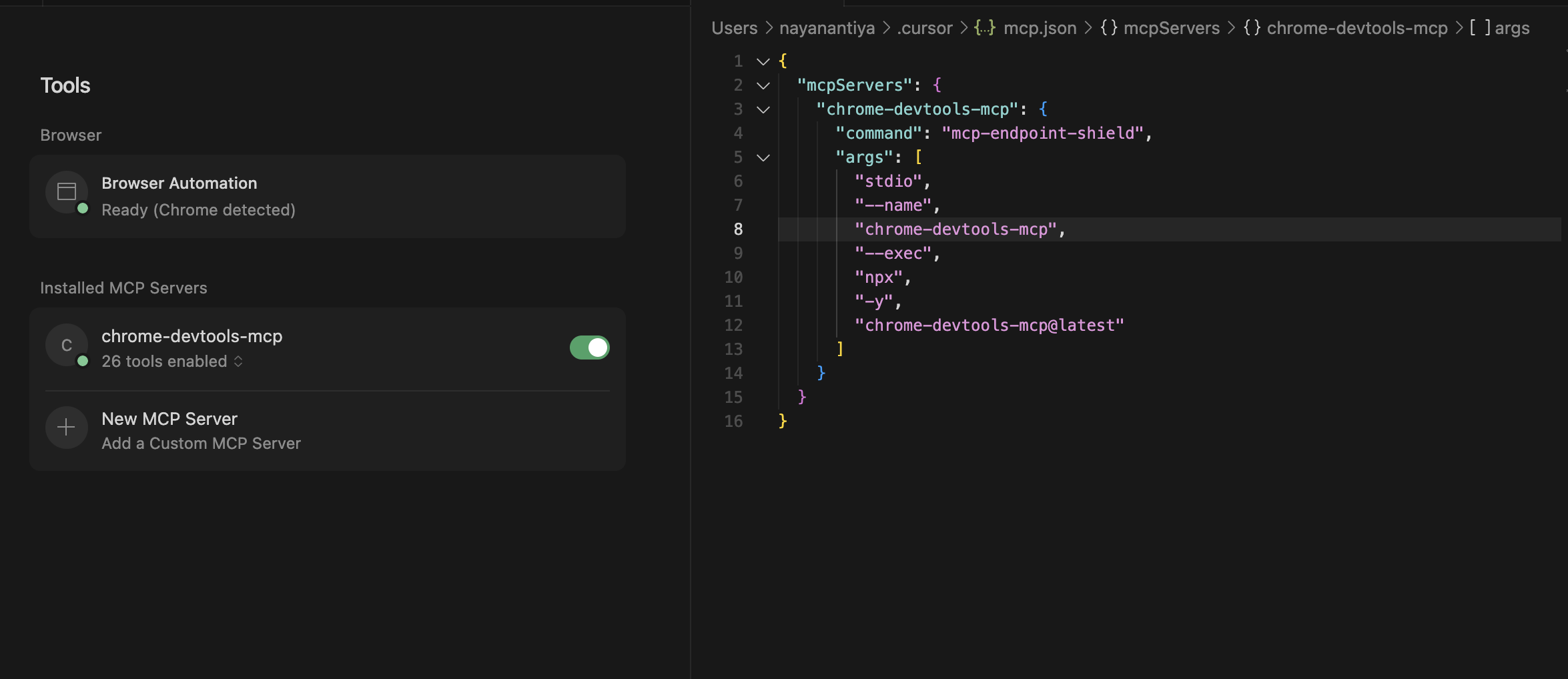 **What changed:**
* `mcp-endpoint-shield` is now the entry command.
* Original server command (`npx -y chrome-devtools-mcp@latest`) is passed through `--exec`.
**What changed:**
* `mcp-endpoint-shield` is now the entry command.
* Original server command (`npx -y chrome-devtools-mcp@latest`) is passed through `--exec`.
## 🔧 Manual Setup
Follow these steps to manually set up and run MCP Endpoint Shield to protect your MCP servers.
### Prerequisites
* You have the `mcp-endpoint-shield` binary available
* You have an Akto API token
* uninstall MCP Endpoint Shield if installed previously using installers
{% stepper %}
{% step %}
**Set Your API Token**
Set the `AKTO_API_TOKEN` environment variable:
```bash
export AKTO_API_TOKEN="your-actual-token-here"
```
**Make it permanent** (optional):
For **bash** users, add to `~/.bashrc`:
```bash
echo 'export AKTO_API_TOKEN="your-actual-token-here"' >> ~/.bashrc
source ~/.bashrc
```
For **zsh** users, add to `~/.zshrc`:
```bash
echo 'export AKTO_API_TOKEN="your-actual-token-here"' >> ~/.zshrc
source ~/.zshrc
```
Verify it's set:
```bash
echo $AKTO_API_TOKEN
```
{% endstep %}
{% step %}
**Start the Agent**
The agent automatically discovers and protects your MCP servers.
```bash
./mcp-endpoint-shield agent
```
**Expected output:**
```
Starting akto agent...
Starting RunAgent...
Agent mode started. Press Ctrl+C to stop...
```
**Keep this terminal running.** The agent will:
* Find your MCP configuration files (Cursor, VS Code, Claude Desktop)
* Wrap your MCP servers with security
* Sync security policies from Akto backend
* Watch for changes and auto-update configs
{% hint style="info" %}
**Note**
If you want the agent to run in the background, use:
```bash
nohup ./mcp-endpoint-shield agent > agent.log 2>&1 &
```
{% endhint %}
{% endstep %}
{% step %}
**Protecting Local MCP Servers (STDIO)**
{% tabs %}
{% tab title="Option A: Agent Wrapping (Recommended)" %}
**Let the Agent Wrap It (Recommended)**
If the agent is running (Step 2), it will **automatically** detect and wrap your config. Your MCP configuration will be automatically modified to route through the security shield.
**Example transformation:**
Before:
```json
{
"mcpServers": {
"chrome-devtools": {
"command": "npx",
"args": ["-y", "chrome-devtools"]
}
}
}
```
After (automatic):
```json
{
"mcpServers": {
"chrome-devtools-endpoint-shield": {
"command": "mcp-endpoint-shield",
"args": [
"stdio",
"--name",
"chrome-devtools",
"--akto-api-token",
"your-actual-token-here",
"--exec",
"npx",
"-y",
"chrome-devtools"
]
}
}
}
```
**Restart your MCP client** (Cursor/VS Code) to apply changes.
{% endtab %}
{% tab title="Option B: Manual Wrapping" %}
**Manual Wrapping (If Not Using Agent)**
If you're not running the agent, manually edit your MCP config file (e.g., `~/.cursor/mcp.json`):
**Before:**
```json
{
"mcpServers": {
"chrome-devtools": {
"command": "npx",
"args": ["-y", "chrome-devtools"]
}
}
}
```
**After:**
```json
{
"mcpServers": {
"chrome-devtools": {
"command": "/path/to/mcp-endpoint-shield",
"args": [
"stdio",
"--name",
"chrome-devtools",
"--akto-api-token",
"your-actual-token-here",
"--exec",
"npx",
"-y",
"chrome-devtools"
]
}
}
}
```
**Key changes:**
1. Change `command` to the full path of `mcp-endpoint-shield`
2. Add `"stdio", "--name", "", "--akto-api-token", "", "--exec"` to the start of `args`
3. Place the original command (`npx`) and arguments (`-y`, `chrome-devtools`) after `--exec`
**Restart your MCP client** to apply changes.
{% endtab %}
{% endtabs %}
{% endstep %}
{% step %}
**Protecting Remote MCP Servers (HTTP)**
For HTTP-based MCP servers, run the HTTP proxy in a **new terminal**:
```bash
export AKTO_API_TOKEN="your-actual-token-here"
./mcp-endpoint-shield http
```
**Expected output:**
```
Starting MCP HTTP Proxy on 127.0.0.1:57294
Project: default, Skip Threat: false
```
**Keep this terminal running.**
{% hint style="info" %}
**Note:** The proxy runs on port `57294` by default.
{% endhint %}
**Configure Your Remote MCP Server**
**Original config** (direct connection to remote server):
```json
{
"mcpServers": {
"remote-mcp": {
"url": "https://remote-mcp-server.example.com/mcp",
"headers": {
"Authorization": "Basic "
}
}
}
}
```
**Protected config** (route through proxy):
```json
{
"mcpServers": {
"remote-mcp": {
"url": "http://localhost:57294/mcp/streamable",
"headers": {
"Authorization": "Basic ",
"mcp-server-base-url": "https://remote-mcp-server.example.com/mcp"
}
}
}
}
```
**Key changes:**
1. Change `url` to `http://localhost:57294/mcp/streamable`
2. Keep your existing `Authorization` header (or any other headers)
3. Add new header `mcp-server-base-url` with the original remote server URL
The proxy will:
* Receive requests at `http://localhost:57294/mcp/streamable`
* Read the `mcp-server-base-url` header to know where to forward
* Apply security policies
* Forward to your actual remote MCP server
* Return the response back to your client
**Restart your MCP client** to apply changes.
{% endstep %}
{% step %}
**Verify Everything is Working**
**Check Agent Status**
Look at the agent terminal - you should see:
```
Agent mode started. Press Ctrl+C to stop...
```
No errors means it's working!
**Check HTTP Proxy Status**
Look at the proxy terminal:
```
Starting MCP HTTP Proxy on 127.0.0.1:57294
```
**Probe Your MCP Server**
Open your MCP client (Cursor, VS Code, Claude Desktop) and try using your wrapped MCP server. It should work normally, but now with security protection.
{% endstep %}
{% endstepper %}
{% hint style="success" %}
**⚙️ Common Flags**
* `--name ` → Friendly label used in logs and insights
* `--akto-api-token ` → Your Akto API token
* `--exec [args...]` → Command to start your MCP server
* `--env KEY=VALUE` (repeatable) → Pass additional environment variables to the MCP process
{% endhint %}
## Quick Command Reference
* **Terminal 1 - Agent:**
```bash
export AKTO_API_TOKEN="your-token"
./mcp-endpoint-shield agent
```
* **Terminal 2 - HTTP Proxy:**
```bash
export AKTO_API_TOKEN="your-token"
./mcp-endpoint-shield http
```
* **Get Help:**
```bash
./mcp-endpoint-shield help
```
This protects:
* **STDIO servers** (like `npx -y chrome-devtools`) via agent
* **HTTP servers** (remote MCP servers) via proxy
{% hint style="info" %}
**🔐 Enterprise Best Practices for MDM Deployments**
**1. Token Management**
* **Use dedicated service accounts** for API tokens
* **Rotate tokens every 90 days** via automated scripts
* **Store tokens in MDM secrets vault** (e.g., Azure Key Vault, AWS Secrets Manager)
* **Never hardcode tokens** in configuration files
**2. Network Considerations**
* **Allow outbound HTTPS** to `*.akto.io` on port 443
* **Whitelist proxy settings** if using corporate proxy
* **Configure firewall rules** for HTTP proxy (port 57294)
* **Use VPN** for remote workers
**3. User Communication**
* **Pre-deployment announcement** explaining the security enhancement
* **Documentation** with FAQs and support contact
* **Training sessions** for power users
* **Feedback channel** for reporting issues
**4. Rollback Strategy**
* **Keep previous version** available in MDM repository
* **Test rollback procedure** on pilot devices
* **Document rollback steps** for IT helpdesk
* **Monitor for issues** during first 48 hours post-deployment
**5. Compliance & Auditing**
* **Enable comprehensive logging** (audit mode initially)
* **Integrate with SIEM** for security monitoring
* **Schedule regular compliance reviews** (monthly)
* **Document security incidents** and response actions
{% endhint %}
## 🧩 Troubleshooting
**Issue:** `AKTO_API_TOKEN is not set` ➡ Cause: Environment variable not configured. ➡ Fix: Set the token with `export AKTO_API_TOKEN="your-token"` and verify with `echo $AKTO_API_TOKEN`.
**Issue:** `Port already in use` (HTTP Proxy) ➡ Cause: Port 57294 is already being used by another process. ➡ Fix 1: Find and kill the process with `lsof -i :57294` and `kill -9 PID`. ➡ Fix 2: Use a different port with `./mcp-endpoint-shield http --port 8080` and update your config.
**Issue:** MCP server not working after wrapping ➡ Cause: Multiple possible causes. ➡ Fix:
1. Restart your MCP client,
2. Verify binary path with `which mcp-endpoint-shield`,
3. Check logs at `~/.akto-mcp-endpoint-shield/logs/` or `/var/log/akto-mcp-endpoint-shield/` (if installed using installer)
4. Test original command works standalone.
**Issue:** `permission denied: ./mcp-endpoint-shield` ➡ Cause: Binary doesn't have execute permissions. ➡ Fix: Run `chmod +x ./mcp-endpoint-shield`.
**Issue:** `command not found: mcp-endpoint-shield` ➡ Cause: Binary not in PATH or wrong path used. ➡ Fix: Use full path (`./mcp-endpoint-shield` or `/usr/local/bin/mcp-endpoint-shield`) or add to PATH with `export PATH=$PATH:/path/to/binary/directory`.
{% hint style="success" %}
**🔒 Guarantees**
* ✅ **Transparency**: Safe traffic is never altered.
* ✅ **Clarity**: Unsafe traffic always results in a clear JSON-RPC error.
* ✅ **Minimal footprint**: Designed to stay invisible unless an issue occurs.
{% endhint %}
## Get Support
There are multiple ways to request support from Akto. We are 24X7 available on the following:
1. In-app `intercom` support. Message us with your query on intercom in Akto dashboard and someone will reply.
2. Join our [discord channel](https://www.akto.io/community) for community support.
3. Contact `support@akto.io` for email support.
4. Contact us [here](https://www.akto.io/contact-us).