> For the complete documentation index, see [llms.txt](https://ai-security-docs.akto.io/llms.txt). Markdown versions of documentation pages are available by appending `.md` to page URLs; this page is available as [Markdown](https://ai-security-docs.akto.io/akto-argus-agentic-ai-security-for-homegrown-ai/connectors/others/aws-services/aws-ecs.md).
# Connect Akto with AWS ECS
## Introduction
Learn about how to send API traffic data from AWS ECS setup to Akto from your environment. Depending on your ECS infrastructure type refer to these respective sections:
1. [FARGATE infrastructure](#adding-akto-traffic-collector-to-ecs-fargate-cluster)
2. [EC2 instances infrastructure](#adding-akto-traffic-collector-to-ecs-ec2-instances-cluster)
## Adding Akto traffic collector to ECS FARGATE cluster
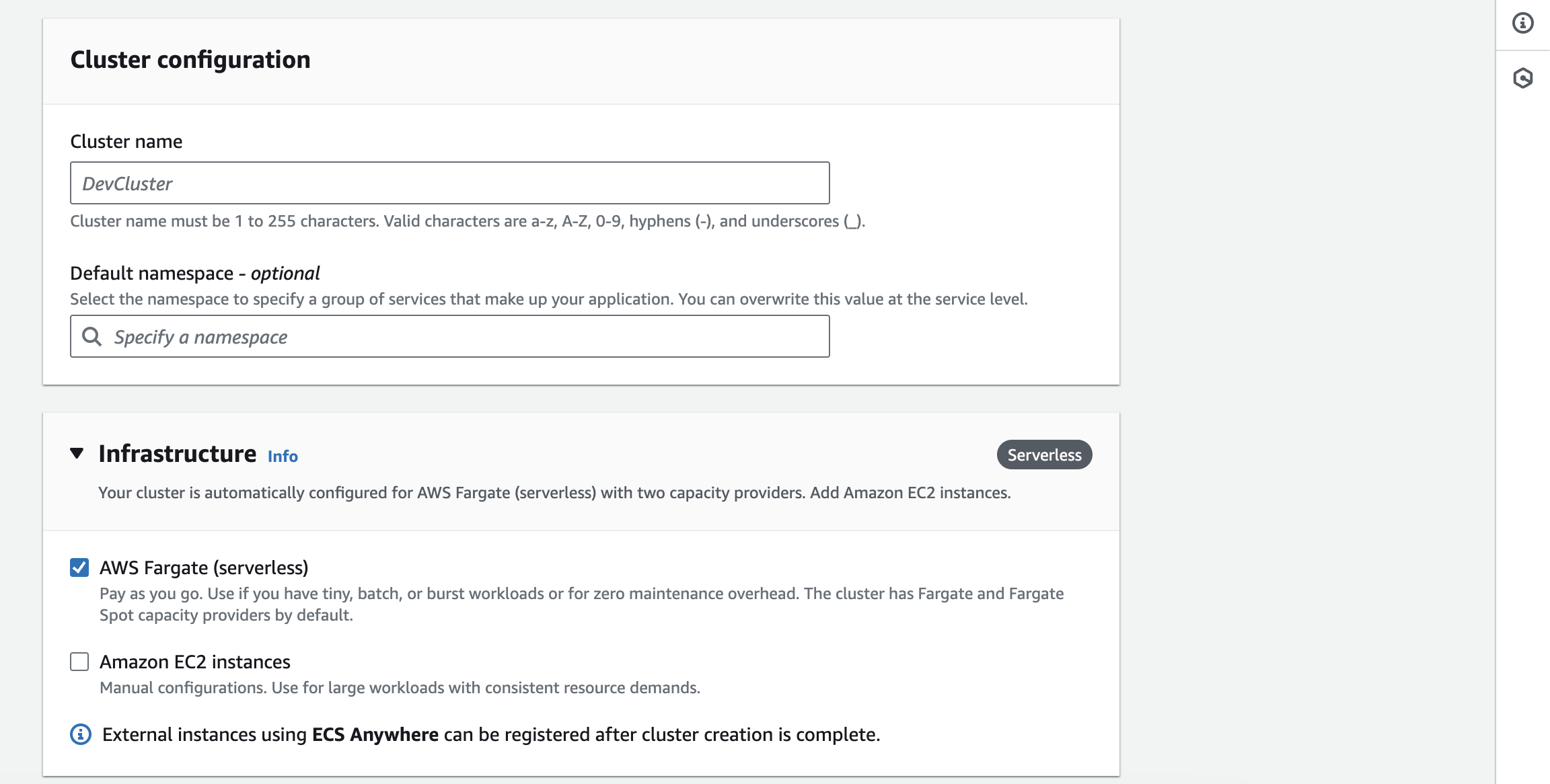
When the ECS cluster is running on AWS FARGATE infrastructure, we will add a container to the task definition of the task, from which we want to monitor. Refer the below image to check your cluster type.
ECS FARGATE infrastructure type
1. Setup the Akto data processor and obtain the `AKTO_NLB_IP` value from your Akto deployment. You'll need this IP address in the next step.
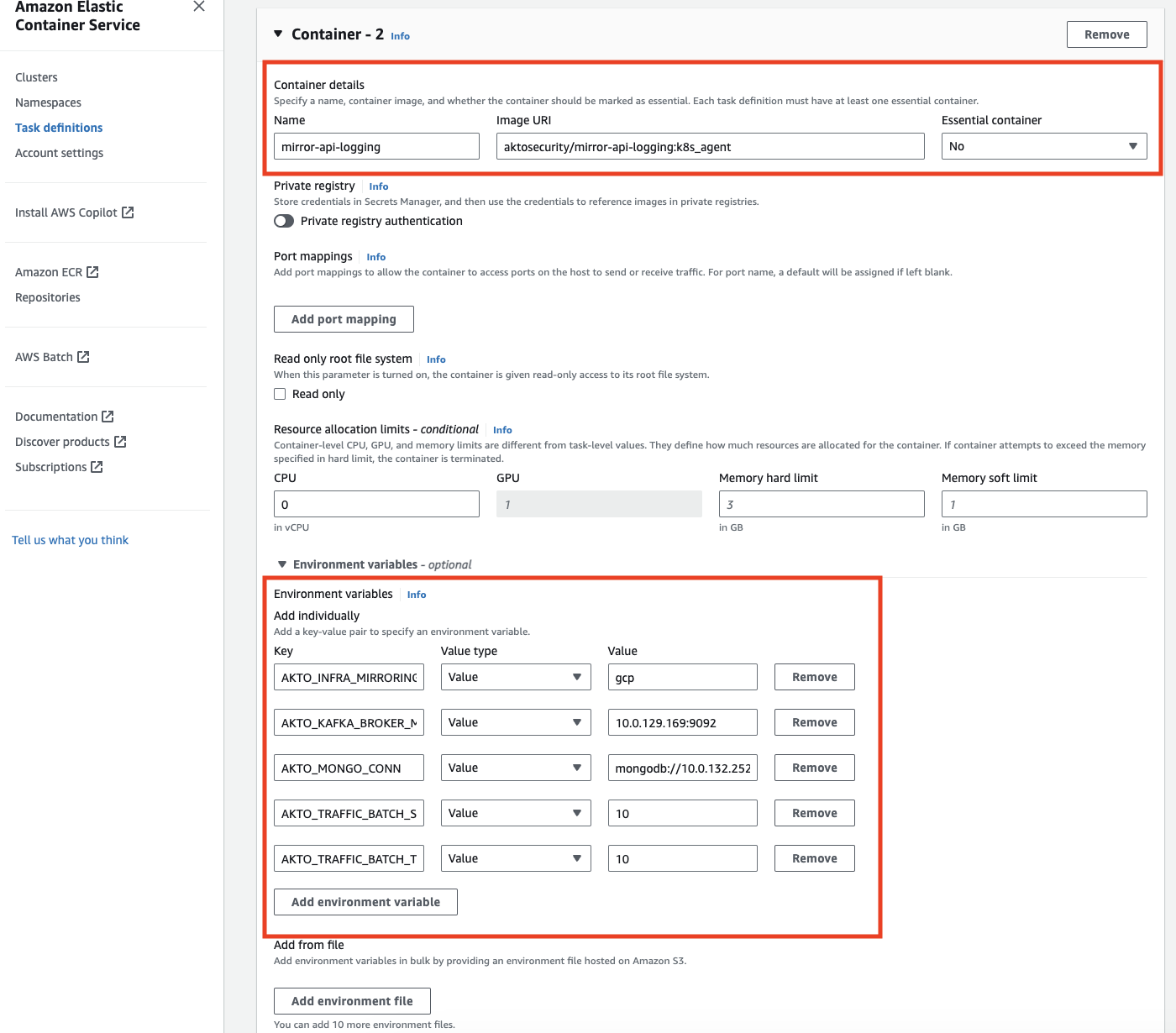
2. Add a container with the configuration defined below. Please replace the `AKTO_NLB_IP` variable with the value obtained in step 1.
```bash
{
"name": "mirror-api-logging",
"image": "aktosecurity/mirror-api-logging:k8s_agent",
"cpu": 1024,
"memory": 1024,
"portMappings": [],
"essential": false,
"environment": [
{
"name": "AKTO_TRAFFIC_BATCH_TIME_SECS",
"value": "10"
},
{
"name": "AKTO_MONGO_CONN",
"value": "mongodb://0.0.0.0:27017/admini"
},
{
"name": "AKTO_TRAFFIC_BATCH_SIZE",
"value": "10"
},
{
"name": "AKTO_INFRA_MIRRORING_MODE",
"value": "gcp"
},
{
"name": "AKTO_KAFKA_BROKER_MAL",
"value": ":9092"
}
],
"environmentFiles": [],
"mountPoints": [],
"volumesFrom": [],
"systemControls": []
}
```
ECS task definition
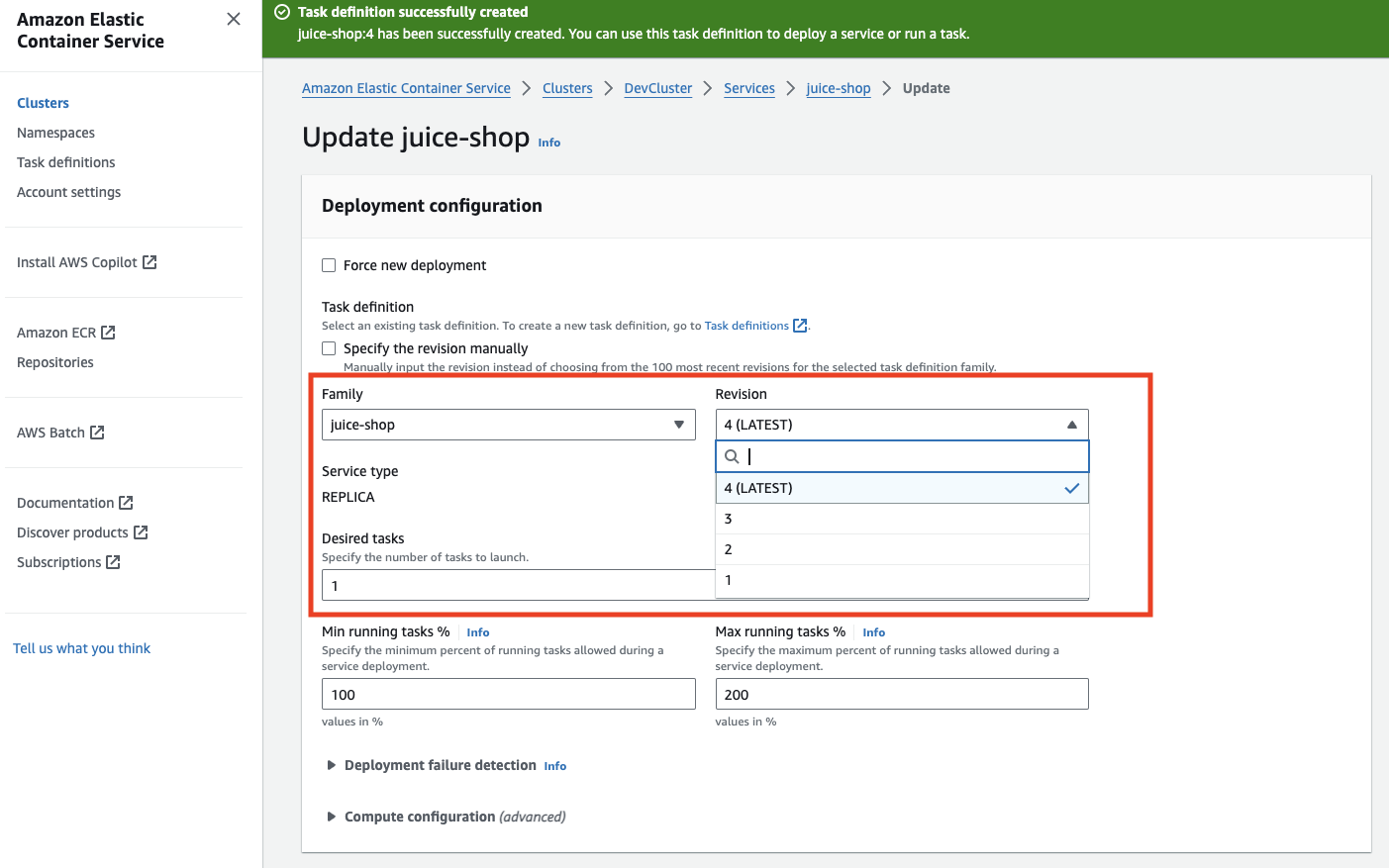
3. After adding this definition to the task, update the task revision in the service.
Update ECS service
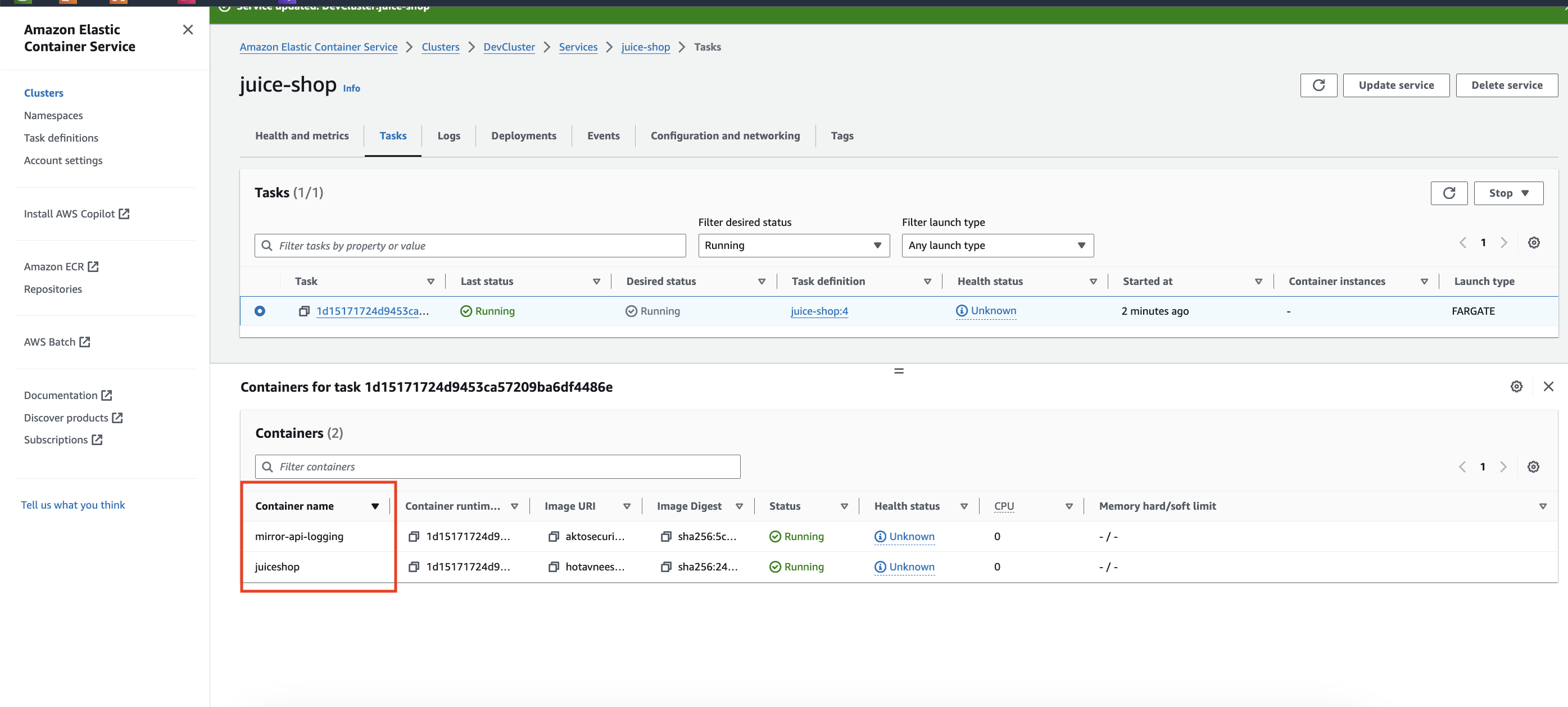
4. The containers for the task should show both your primary container and mirror-api-logging container.
Updated service
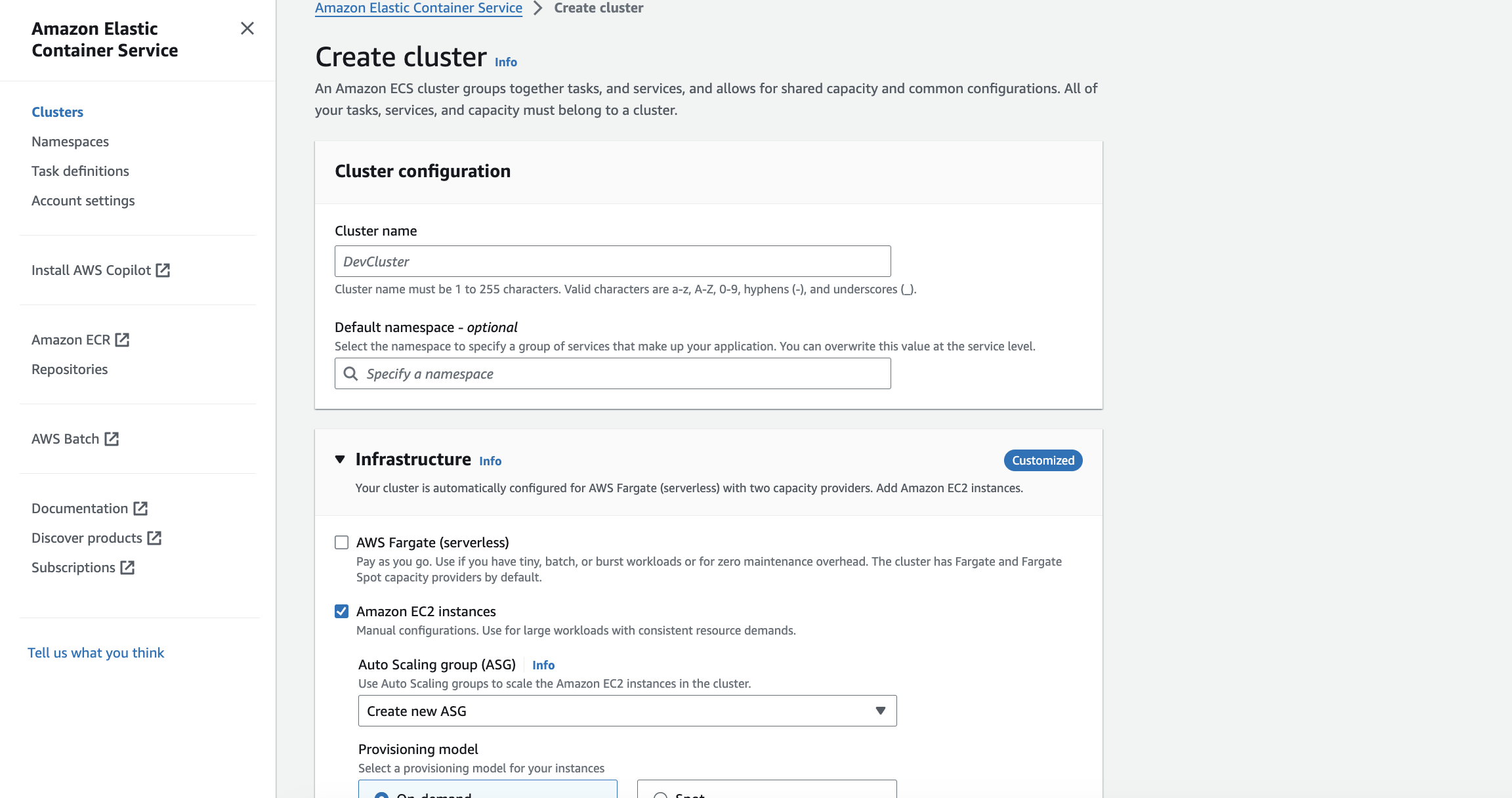
## Adding Akto traffic collector to ECS EC2 instances cluster
When the ECS cluster is a EC2 instances cluster, we will create a task definition for the mirror-api-logging container and run the task as a daemonset.
Cluster configuration
1. Setup the Akto data processor and obtain the `AKTO_NLB_IP` value from your Akto deployment. You'll need this IP address in the next step.
2. We will create a new task definition with launch type as EC2 instances, network mode host and the container details as follows. You can directly create a new task definition using the JSON given below. You can also refer the screenshots attached. Please replace the `AKTO_NLB_IP` variable with the value obtained in step 1.
```bash
{
"family": "mirror-api-logging",
"containerDefinitions": [
{
"name": "mirror-api-logging",
"image": "aktosecurity/mirror-api-logging:k8s_agent",
"cpu": 1024,
"memory": 1024,
"portMappings": [],
"essential": true,
"environment": [
{
"name": "AKTO_TRAFFIC_BATCH_TIME_SECS",
"value": "10"
},
{
"name": "AKTO_MONGO_CONN",
"value": "mongodb://0.0.0.0:27017/admini"
},
{
"name": "AKTO_TRAFFIC_BATCH_SIZE",
"value": "10"
},
{
"name": "AKTO_INFRA_MIRRORING_MODE",
"value": "gcp"
},
{
"name": "AKTO_KAFKA_BROKER_MAL",
"value": ":9092"
}
],
"environmentFiles": [],
"mountPoints": [],
"volumesFrom": [],
"ulimits": [],
"logConfiguration": {
"logDriver": "awslogs",
"options": {
"awslogs-create-group": "true",
"awslogs-group": "/ecs/mirror-api-logging",
"awslogs-region": "ap-south-1",
"awslogs-stream-prefix": "ecs"
},
"secretOptions": []
},
"systemControls": []
}
],
"executionRoleArn": "
.png?alt=media)