> For the complete documentation index, see [llms.txt](https://ai-security-docs.akto.io/llms.txt). Markdown versions of documentation pages are available by appending `.md` to page URLs; this page is available as [Markdown](https://ai-security-docs.akto.io/akto-argus-agentic-ai-security-for-homegrown-ai/connectors/others/api-gateways/connect-akto-with-kong.md).
# Connect Akto with Kong
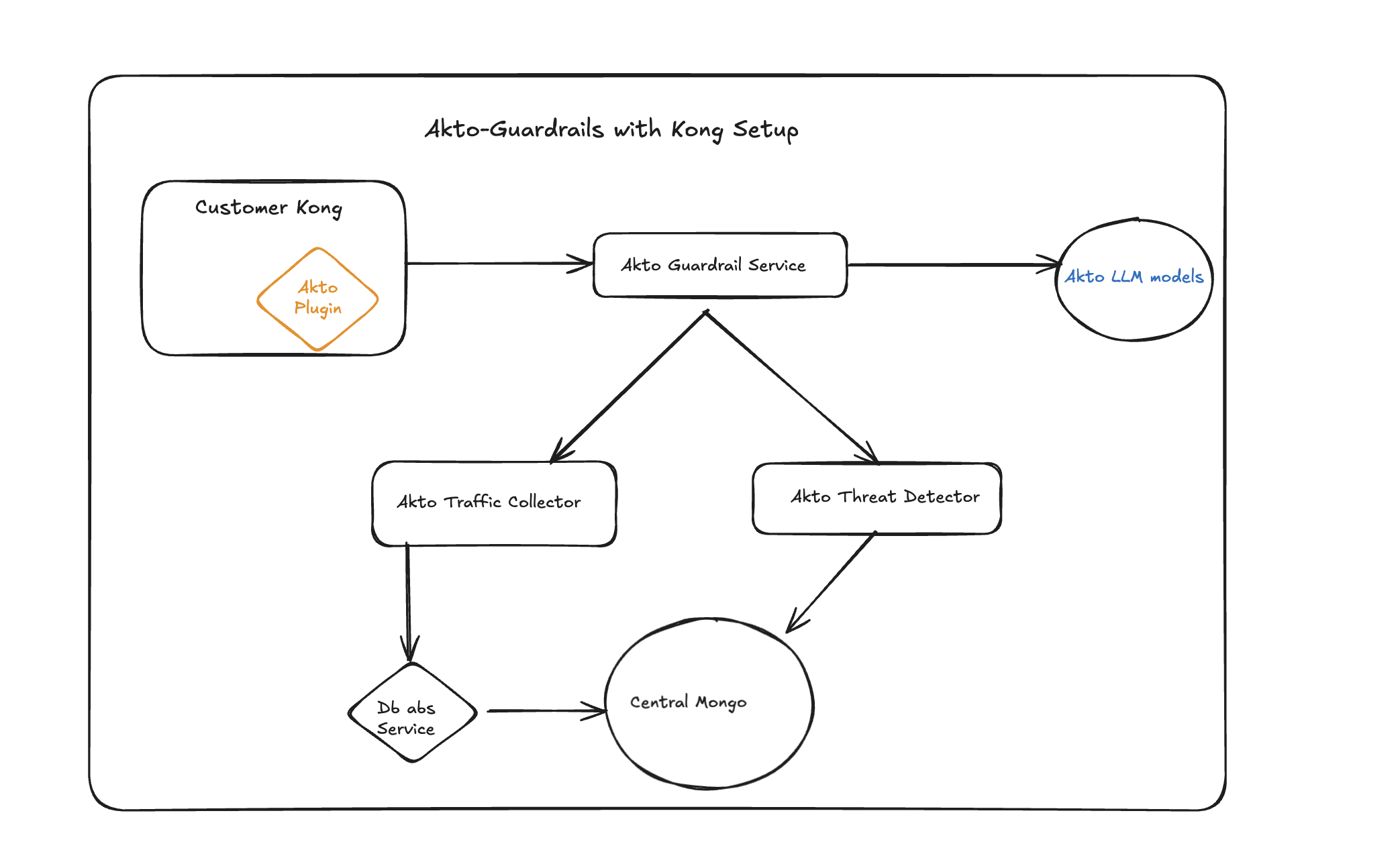
Monitor and secure all incoming requests and outgoing responses from your **AI agents and MCP (Model Context Protocol) servers** running on Kong API Gateway. The `akto-mcp-endpoint-shield` plugin works for any agentic workload behind Kong — whether that's an MCP server handling tool calls, an AI agent API, an LLM-backed service, or any HTTP-based AI workload. It captures traffic flowing through Kong and sends it to Akto's guardrail service for real-time security analysis, visibility, and compliance monitoring.
## Prerequisites
Before you begin, make sure you have:
* Kong Gateway **2.0 or later** already running with your AI agent or MCP server registered as a Kong service/route
* Access to Kong's Admin API (default: `http://localhost:8001`)
* A server or Kubernetes cluster to host the Akto guardrail backend
* Your **Akto API Token** (go to **Akto Argus → Connectors → Setup Guardrail** card and copy your token)
***
## Step 1: Install the Plugin in Kong
{% stepper %}
{% step %}
**Download the Plugin Files**
Clone the Akto Kong integration repository:
```bash
git clone https://github.com/akto-api-security/kong-integration.git
cd kong-integration
```
Inside the `plugin/` directory you will find two files:
* `handler.lua` — plugin logic
* `schema.lua` — configuration schema
{% hint style="info" %}
You only need these two files. Nothing else from the repository is required for the plugin itself.
{% endhint %}
{% endstep %}
{% step %}
**Copy the Plugin Files into Kong**
Create the plugin directory inside Kong and copy both files into it:
```bash
mkdir -p /usr/local/share/lua/5.1/kong/plugins/akto-mcp-endpoint-shield
cp plugin/handler.lua /usr/local/share/lua/5.1/kong/plugins/akto-mcp-endpoint-shield/
cp plugin/schema.lua /usr/local/share/lua/5.1/kong/plugins/akto-mcp-endpoint-shield/
```
**Using Docker?** Mount the plugin directory as a volume instead:
```yaml
volumes:
- /path/to/kong-integration/plugin:/usr/local/share/lua/5.1/kong/plugins/akto-mcp-endpoint-shield:ro
```
{% endstep %}
{% step %}
**Register the Plugin with Kong**
Add `akto-mcp-endpoint-shield` to Kong's plugins list. How you do this depends on how Kong is configured:
**Via `kong.conf`:**
```
plugins = bundled,akto-mcp-endpoint-shield
```
**Via environment variable:**
```bash
KONG_PLUGINS=bundled,akto-mcp-endpoint-shield
```
{% hint style="info" %}
If you are using Docker Compose, set this as an environment variable on the Kong service.
{% endhint %}
{% endstep %}
{% step %}
**Restart Kong**
```bash
kong restart
```
Or if using Docker:
```bash
docker compose restart kong
```
{% endstep %}
{% endstepper %}
***
## Step 2: Enable the Plugin on Your Service or Route
You can attach the plugin to a specific service, a specific route, or globally across all traffic.
**Enable on a specific service** (recommended — scopes monitoring to your AI agent or MCP service only):
```bash
curl -X POST http://localhost:8001/services//plugins \
--data "name=akto-mcp-endpoint-shield" \
--data "config.service_url=http://" \
--data "config.mode=async" \
--data "config.timeout=15000"
```
**Enable on a specific route:**
```bash
curl -X POST http://localhost:8001/routes//plugins \
--data "name=akto-mcp-endpoint-shield" \
--data "config.service_url=http://" \
--data "config.mode=async" \
--data "config.timeout=15000"
```
**Enable globally** (monitors all traffic through Kong):
```bash
curl -X POST http://localhost:8001/plugins \
--data "name=akto-mcp-endpoint-shield" \
--data "config.service_url=http://" \
--data "config.mode=async" \
--data "config.timeout=15000"
```
Replace `` with your guardrail service URL:
* **If Akto provided you a URL** — it follows the format `https://-guardrails.akto.io`; contact the Akto support team to get the URL for your account.
* **Otherwise**, complete Step 3 to self-host the backend and use the URL you get from there.
{% hint style="info" %}
**Configuration Parameters**
| Parameter | Required | Description |
| ------------- | -------- | ------------------------------------------------------------------------------------------------------------------------------ |
| `service_url` | Yes | Base URL of your deployed Akto guardrail backend (e.g., `http://10.0.1.4:8080`) |
| `mode` | Yes | `async` — non-blocking, logs traffic in background. `blocked` — validates request and response before serving, can return 403. |
| `timeout` | No | Request timeout in milliseconds. Default: `30000`. Recommended minimum: `15000`. |
| {% endhint %} | | |
You can also configure the plugin via **Kong Manager UI**: go to **Plugins → New Plugin → search for `akto-mcp-endpoint-shield`**.
***
## Step 3: Deploy the Akto Guardrail Backend
{% hint style="info" %}
If you already have the Akto guardrail backend deployed (or have been given a `service_url` by your team), skip this step and use that URL directly in Step 2.
{% endhint %}
The guardrail backend is a set of services that receive traffic from the Kong plugin, run security checks, and ingest data for analysis. You can deploy it using **Docker Compose** (any Linux VM) or **Helm** (Kubernetes).
### Option A: Docker Compose — Any Linux VM
This is the fastest way to get started. You need a Linux server with at least **4 vCPUs and 8 GB RAM**.
The deployment files are available at:\
`https://github.com/akto-api-security/infra/tree/feature/quick-setup/guardrail-service-e2e-setup`
{% stepper %}
{% step %}
**Clone the Setup Repository**
```bash
git clone -b feature/quick-setup https://github.com/akto-api-security/infra.git
cd infra/guardrail-service-e2e-setup
```
{% endstep %}
{% step %}
**Set Up Environment Files**
Navigate into the `docker-compose` folder, then copy each template and fill in your Akto API token:
```bash
cd docker-compose
# Kafka IP (only variable substituted by docker-compose itself)
cp .env.example .env
# Edit .env — set AKTO_KAFKA_IP to your server's private IP
# Service env files — copy each template and replace
cp docker-guardrails-service.env.template docker-guardrails-service.env
cp docker-guardrails-service-kafka.env.template docker-guardrails-service-kafka.env
cp docker-mini-runtime.env.template docker-mini-runtime.env
cp data-ingestion-docker.env.template data-ingestion-docker.env
cp docker-account-job-executor.env.template docker-account-job-executor.env
```
Open each `.env` file you just created and replace every `` with your token from **Akto Argus → Connectors → Setup Guardrail** card.
{% hint style="warning" %}
Never publish `.env` files in the public — they contain your API token.
{% endhint %}
{% endstep %}
{% step %}
**Start the Services**
```bash
docker compose up -d
```
This starts the following services:
| Service | Port | Purpose |
| --------------------------- | ---- | ------------------------------------------------------------------------------------------ |
| `zoo1` | 2181 | ZooKeeper (Kafka coordination) |
| `kafka1` | 9092 | Kafka message broker |
| `akto-api-security-runtime` | — | Processes API traffic from Kafka |
| `guardrails-service` | 9090 | Async guardrails (Kafka-based) |
| `guardrails-service-http` | 9091 | Internal sync guardrails (called by data-ingestion-service) |
| `data-ingestion-service` | 8080 | Receives traffic, runs guardrails, and ingests data — **this is the Kong plugin endpoint** |
| {% endstep %} | | |
{% step %}
**Verify All Services Are Running**
```bash
docker compose ps
```
All services should show status `Up`. If any are restarting, check their logs:
```bash
docker compose logs guardrails-service-http
docker compose logs data-ingestion-service
```
Test the guardrail service endpoint directly:
```bash
curl -sf http://localhost:9091/health && echo "guardrails OK"
curl -sf http://localhost:8080/health && echo "data-ingestion OK"
```
{% endstep %}
{% step %}
**Update the Kong Plugin with the Service URL**
Your guardrail service is now available at `http://:8080`. Update the Kong plugin configuration:
```bash
# Update an existing plugin (replace with your plugin's ID)
curl -X PATCH http://localhost:8001/plugins/ \
--data "config.service_url=http://:8080"
```
Or if you haven't enabled the plugin yet, use this URL in the Step 2 commands above.
{% hint style="info" %}
If your Kong instance and guardrail server are on different networks, make sure port `8080` is accessible from the Kong host. If you want HTTPS, place a reverse proxy (nginx, Caddy) or load balancer in front of the guardrail service.
{% endhint %}
{% endstep %}
{% endstepper %}
***
### Option B: Kubernetes (Helm Charts)
Use this option if your infrastructure runs on Kubernetes.
{% stepper %}
{% step %}
**Add the Akto Helm Repository**
```bash
helm repo add akto https://akto-api-security.github.io/helm-charts
helm repo update
```
{% endstep %}
{% step %}
**Install the Charts in Order**
Deploy the following four charts **in the exact order shown**. Each chart depends on the previous one.
**Chart 1 — Database Abstractor**
Sets up the data access layer. After installing, retrieve the service token from your Akto dashboard.
```bash
helm install akto-database-abstractor akto/akto-setup-database-abstractor \
-n \
--set mongo.aktoMongoConn=""
```
**Chart 2 — Data Ingestion + Runtime**
Processes and stores the traffic captured by the Kong plugin.
```bash
helm install akto-mrs-runtime-combined akto/akto-mrs-runtime-combined \
-n \
--set mini_runtime.aktoApiSecurityRuntime.env.databaseAbstractorUrl="https://ultron.akto.io" \
--set mini_runtime.aktoApiSecurityRuntime.env.databaseAbstractorToken="" \
--set mini_runtime.aktoApiSecurityRuntime.env.aktoLogLevel="INFO"
```
**Chart 3 — Threat Backend**
```bash
helm install akto-threat-backend akto/akto-threat-backend \
-n \
--set mongo.aktoMongoConn=""
```
**Chart 4 — AI Guardrails**
```bash
helm install akto-ai-guardrails akto/akto-ai-guardrails \
-n \
--set guardrailsService.env.aktoApiToken="" \
--set guardrailsService.env.aktoDbAbstractorHost="https://ultron.akto.io" \
--set guardrailsService.env.aktoAgentGuardUrl="http://akto-ai-guardrails-executor:8092" \
--set guardrailsService.env.aktoThreatDetectionHost="http://akto-threat-backend:8080" \
--set guardrailsService.env.aktoLlmValidatorHost="https://ultron.akto.io" \
--set guardrailsService.env.aktoIngestHost="http://akto-mrs-runtime-combined-data-ingestion-service:8080" \
--set guardrailsService.env.logLevel="info" \
--set agentGuardExecutor.enabled=true
```
{% endstep %}
{% step %}
**Verify All Pods Are Running**
```bash
kubectl get pods -n
```
You should see pods for all four charts in `Running` status. If any pod is stuck in `CrashLoopBackOff` or `Pending`, check its logs:
```bash
kubectl logs -n
```
{% endstep %}
{% step %}
**Get the Guardrail Service URL**
```bash
kubectl get services -n | grep guardrails
```
Use the service's `CLUSTER-IP` (for in-cluster access) or set up an `Ingress` / `LoadBalancer` service for external access. Update the Kong plugin `config.service_url` with this URL.
{% endstep %}
{% endstepper %}
***
## How the Two Modes Work
| | `async` | `blocked` |
| ----------------------- | ---------------------------------------- | ------------------------------------------------------- |
| **When guardrails run** | After the response is sent to the client | Before the request reaches your AI agent or MCP server |
| **Impact on latency** | None — runs in background | Adds guardrail check latency to every request |
| **Can block requests** | No (logs only) | Yes — returns `403` if a request or response is flagged |
| **Best for** | Monitoring and visibility | Enforcing security policies |
**Start with `async`** to monitor traffic without impacting your users. Switch to `blocked` once you've validated your guardrail rules.
***
## Verify the Integration
After setup, send a test request through Kong (use the port Kong is listening on in your environment):
```bash
curl -X POST http://:/ \
-H "Content-Type: application/json" \
-d '{"jsonrpc":"2.0","id":1,"method":"tools/list","params":{}}'
```
Check Kong logs to confirm the plugin is active:
```bash
# Docker
docker compose logs kong | grep "\[akto\]"
# Kubernetes
kubectl logs -n | grep "\[akto\]"
```
In **async mode**, you should see lines like:
```
[akto] ASYNC MODE — queuing ingest
[akto] method : POST
[akto] path : /your-route
[akto] [async] sending to → http:///api/http-proxy?...
[akto] [async] ingest ok — guardrails passed
```
In **blocked mode**, the log will show each step: request check → upstream call → response check.
***
## Troubleshooting
**Plugin not loading after restart**\
Verify that `akto-mcp-endpoint-shield` appears in `KONG_PLUGINS` and that both `handler.lua` and `schema.lua` are present in the correct directory. Run `kong check` to validate the configuration.
**`[akto] async ingest error: request failed: timeout`**\
The guardrail service is not reachable from Kong within the configured timeout. Check:
1. The `config.service_url` is correct and reachable from the Kong host
2. Firewall/NSG rules allow traffic on port `9091` (or your configured port)
3. Increase `config.timeout` (e.g., `15000` ms) if the service is reachable but slow on first connection due to SSL handshake
**No `[akto]` lines in Kong logs**\
The default Kong log level is `warn`. Plugin info messages only appear at `info` level. Set `KONG_LOG_LEVEL=info` in your Kong environment and restart.
**`blocked` mode returns `500` / unexpected errors**\
Confirm that `kong.router.get_route()` returns a valid route object. This happens when the plugin runs on a route that is properly registered via the Kong Admin API.
***
## Get Support
* Raise an issue in the [Kong Integration GitHub repository](https://github.com/akto-api-security/kong-integration)
* Contact the team via Slack or your assigned support channel
* For enterprise support, email the engineering team with your Kong version, plugin version, and relevant log snippets