> For the complete documentation index, see [llms.txt](https://ai-security-docs.akto.io/llms.txt). Markdown versions of documentation pages are available by appending `.md` to page URLs; this page is available as [Markdown](https://ai-security-docs.akto.io/akto-argus-agentic-ai-security-for-homegrown-ai/connectors/ai-agent-security/snowflake/snowflake-red-teaming.md).
# Snowflake Red Teaming
Red team your Snowflake AI agents and Cortex endpoints with Akto.
## Overview
Akto lets you run security probes against Snowflake-based AI agents and Cortex endpoints. This guide walks you through generating a Snowflake Programmatic Access Token (PAT), configuring a Scan Role, and running a red teaming scan.
## Step 1: Generate a Snowflake PAT Token
Akto uses a Snowflake Programmatic Access Token (PAT) to authenticate scan requests against your Snowflake endpoints. You can generate one via the Snowflake UI or via a SQL query.
{% tabs %}
{% tab title="Via Snowflake UI" %}
{% stepper %}
{% step %}
**Log in to Snowflake**
Log in to [Snowsight](https://app.snowflake.com).
{% endstep %}
{% step %}
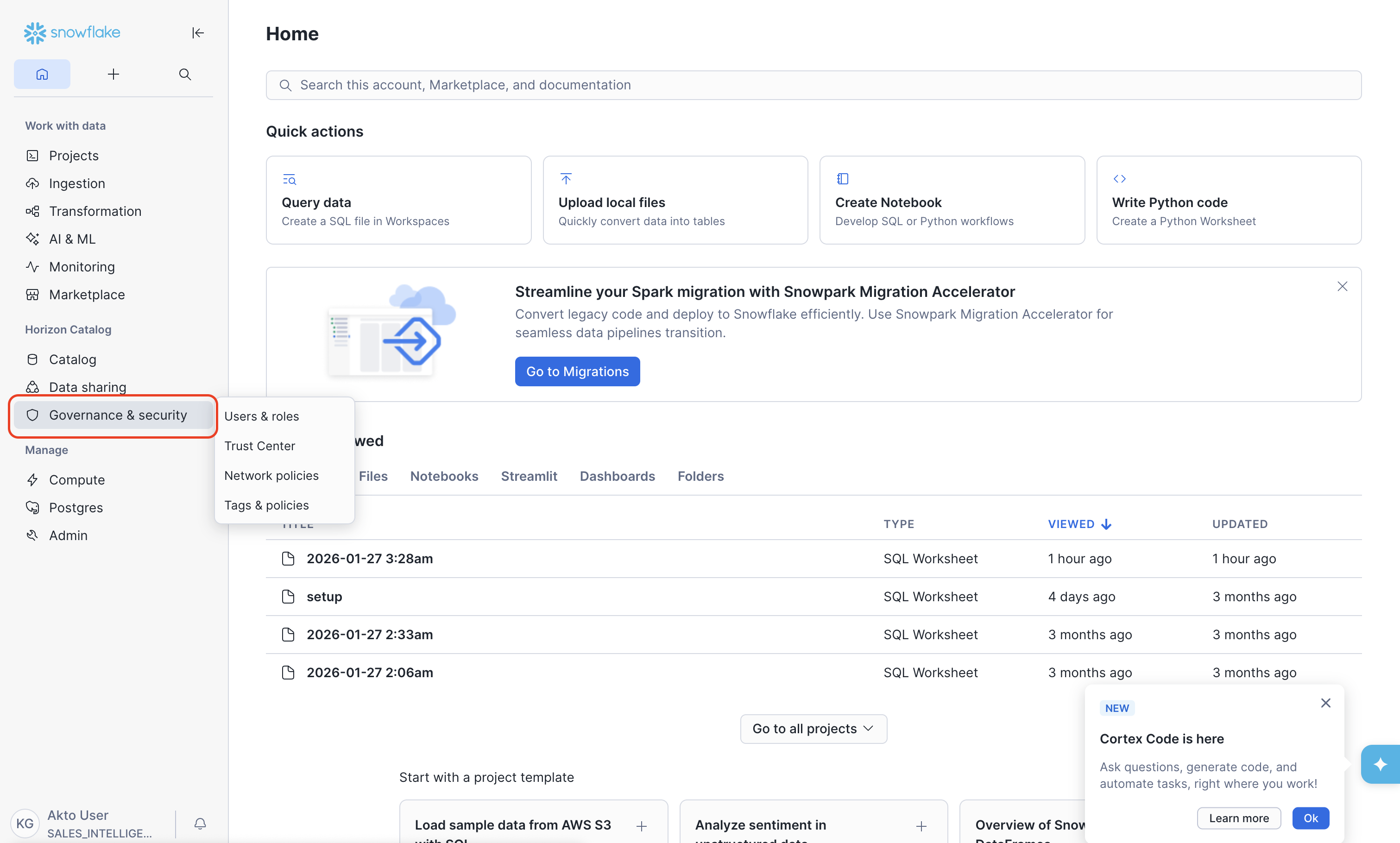
**Go to Governance & Security**
From the left navigation, go to **Governance & Security**.
{% endstep %}
{% step %}
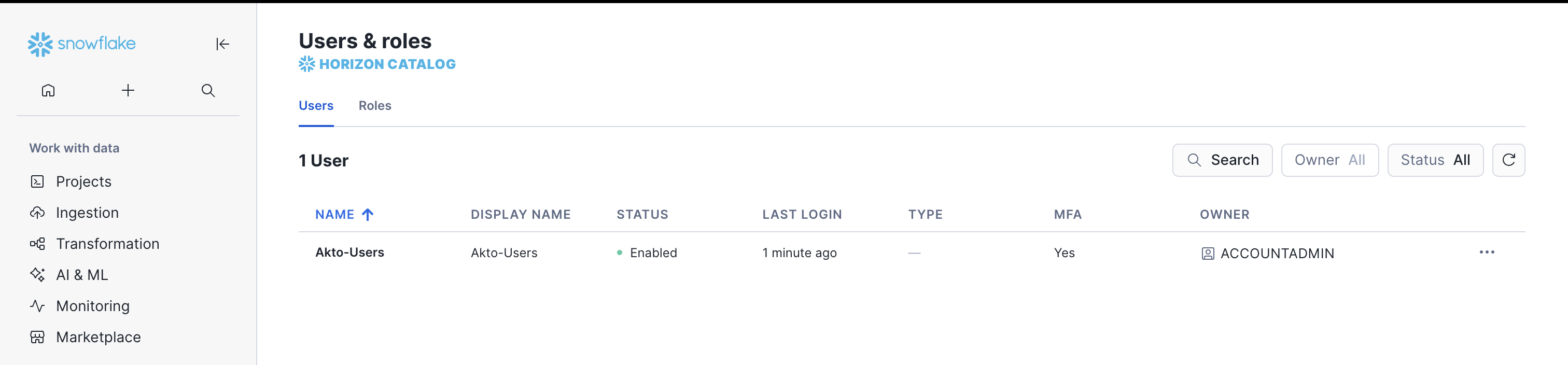
**Select the User**
Select the user you want to generate the token for.
{% endstep %}
{% step %}
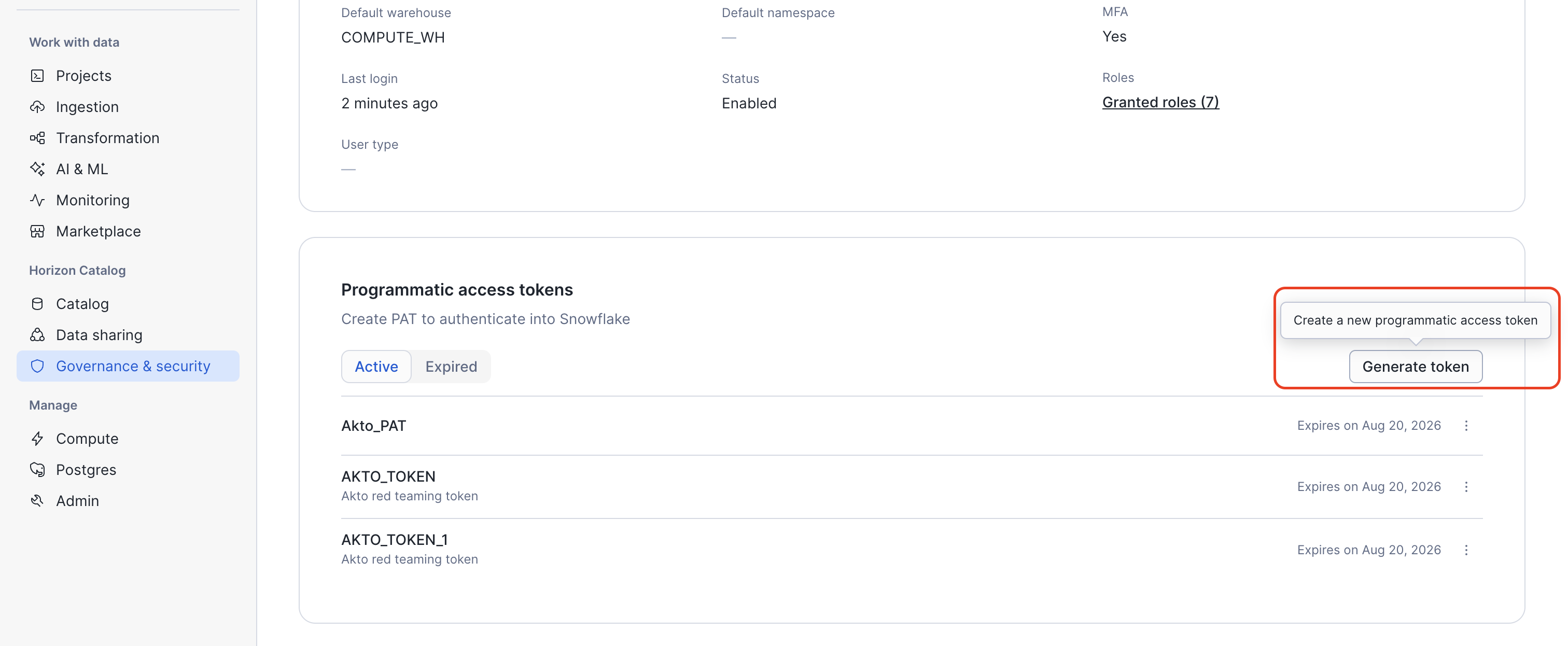
**Generate the Token**
Under the **Programmatic Access Tokens** section, click **Generate Token**.
{% endstep %}
{% step %}
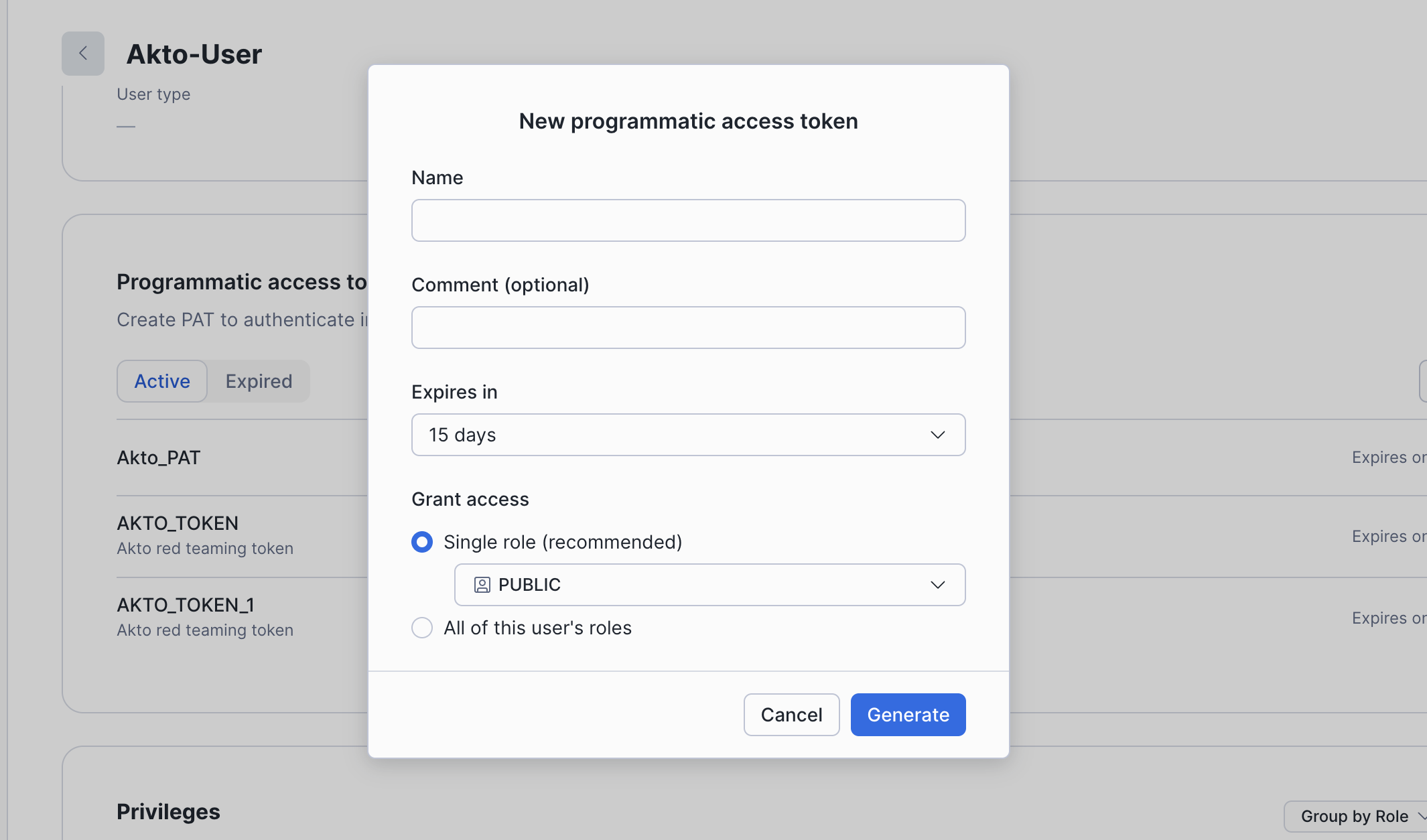
**Fill in Token Details**
Enter the following:
* **Name** — a descriptive label for the token (e.g. `akto-red-teaming`)
* **Comment** — an optional note for context
* **Expiry** — set an appropriate expiry duration
* **Role** — grant access to the relevant Snowflake role
{% endstep %}
{% step %}
**Copy and Save the Token**
Click **Generate**. Copy and save the token — it will not be shown again.
{% endstep %}
{% endstepper %}
{% endtab %}
{% tab title="Via SQL Query" %}
Run the following command in a Snowflake worksheet:
```sql
ALTER USER ADD PROGRAMMATIC ACCESS TOKEN
DAYS_TO_EXPIRY = 90
COMMENT = 'Akto red teaming token';
```
{% hint style="warning" %}
Copy and store the token immediately. Snowflake does not allow you to retrieve it again after generation.
{% endhint %}
{% endtab %}
{% endtabs %}
***
## Step 2: Configure a Scan Role
Create a Scan Role in Akto that uses the PAT token and scopes it to your Snowflake endpoints.
Follow the [Create a Scan Role](/akto-argus-agentic-ai-security-for-homegrown-ai/agentic-red-teaming/how-to/create-a-test-role.md) guide and apply the Snowflake-specific settings below.
### Snowflake Scan Role Configuration
| Field | Value |
| ---------------------- | -------------------------------------------------- |
| **Role Name** | e.g. `snowflake-test-role` |
| **Endpoint condition** | `Endpoint` → `contains` → `snowflakecomputing.com` |
| **Auth type** | Hard-coded |
| **Header Key** | `Authorization` |
| **Header Value** | `Bearer ` |
{% hint style="info" %}
The endpoint condition `snowflakecomputing.com` ensures this auth token is applied only to Snowflake requests and not to any other agentic traffic.
{% endhint %}
***
## Step 3: Run Red Teaming Scan
Once the Scan Role is configured, select your Snowflake agent components, choose the relevant probe categories, and select the Scan Role configured in Step 2 under **Scan Execution Parameters**.
For detailed steps, see [Run Scan](/akto-argus-agentic-ai-security-for-homegrown-ai/agentic-red-teaming/how-to/run-test.md).
***
## Get Support
There are multiple ways to request support from Akto. We are 24X7 available on the following:
* **In-app chat**: Use the Intercom widget in your Akto dashboard and someone will reply.
* **Discord community**: Join our community at [akto.io/community](https://www.akto.io/community).
* **Email support**: Contact us at .