> For the complete documentation index, see [llms.txt](https://ai-security-docs.akto.io/llms.txt). Markdown versions of documentation pages are available by appending `.md` to page URLs; this page is available as [Markdown](https://ai-security-docs.akto.io/akto-argus-agentic-ai-security-for-homegrown-ai/agentic-red-teaming/how-to/red-team-copilot-studio-old.md).
# Red Team Copilot Studio via Power Automate Flow
{% hint style="info" %}
Use this guide if you are red teaming a single Copilot Studio agent.
{% endhint %}
## Overview
This guide walks you through setting up automated red teaming for AI Agents built on Microsoft Copilot Studio using Akto. A Power Automate flow acts as the HTTP bridge between Akto and your Copilot Studio agent — Akto sends adversarial prompts to the flow, the flow forwards them to your agent, and the responses come back for analysis.
***
## Prerequisites
* A **published** AI Agent in Copilot Studio (draft agents won't work)
* A Microsoft account with:
* Permission to create App Registrations and add API permissions in Microsoft Entra
* Permission to create flows in Power Automate
* **Power Automate Premium** license (per-user or per-flow) — the HTTP trigger and Copilot Studio connector are both premium features
***
## Step 1: Create an App Registration in Microsoft Entra
This app registration lets you obtain an access token to call the Power Automate flow programmatically.
### Register the App
{% stepper %}
{% step %}
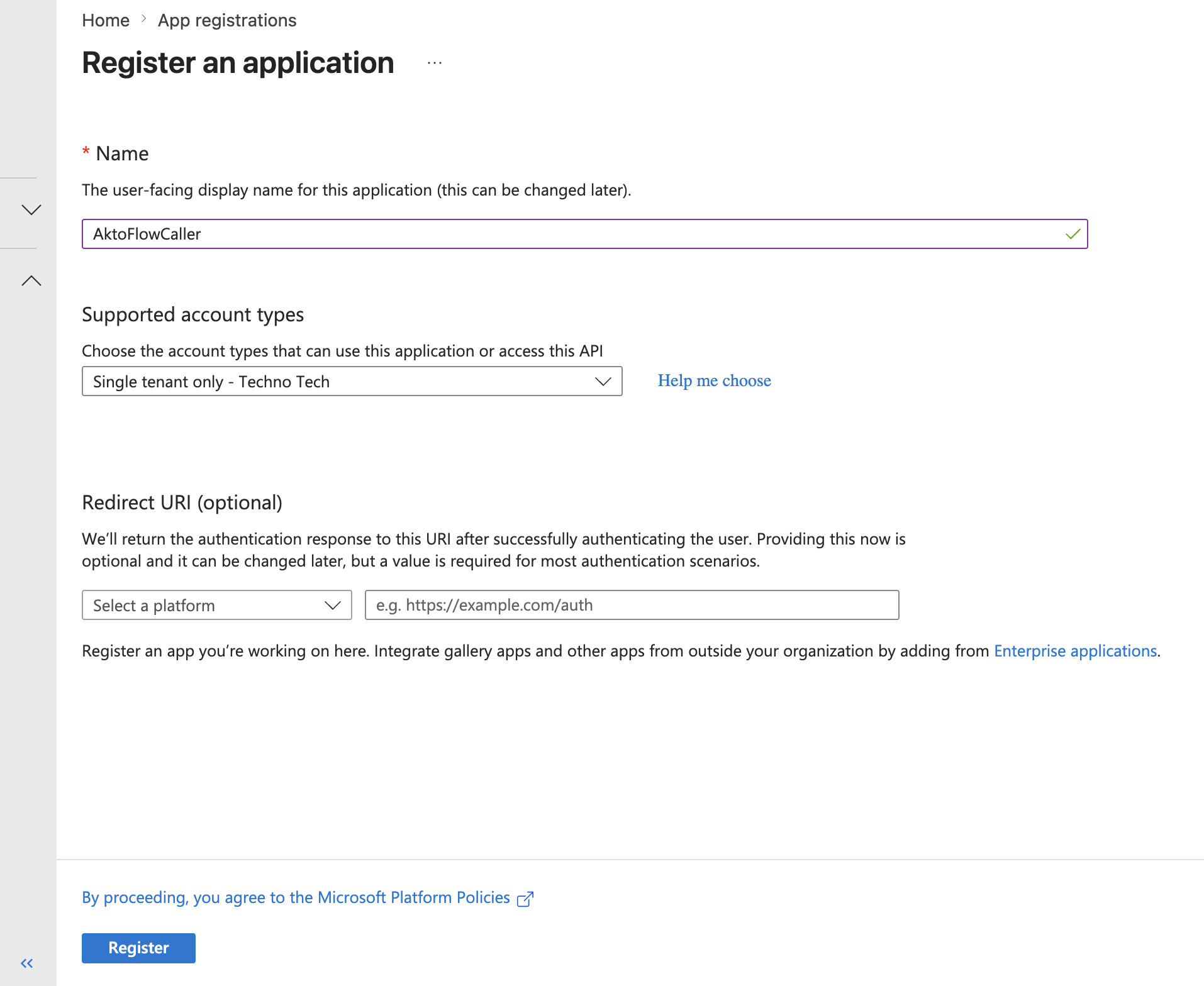
Go to [Microsoft Entra](https://entra.microsoft.com) > **App registrations** > **New registration**.
{% endstep %}
{% step %}
Give the app a name and set supported account types to **Single tenant**.
{% endstep %}
{% step %}
No redirect URI needed — click **Register**.
{% endstep %}
{% step %}
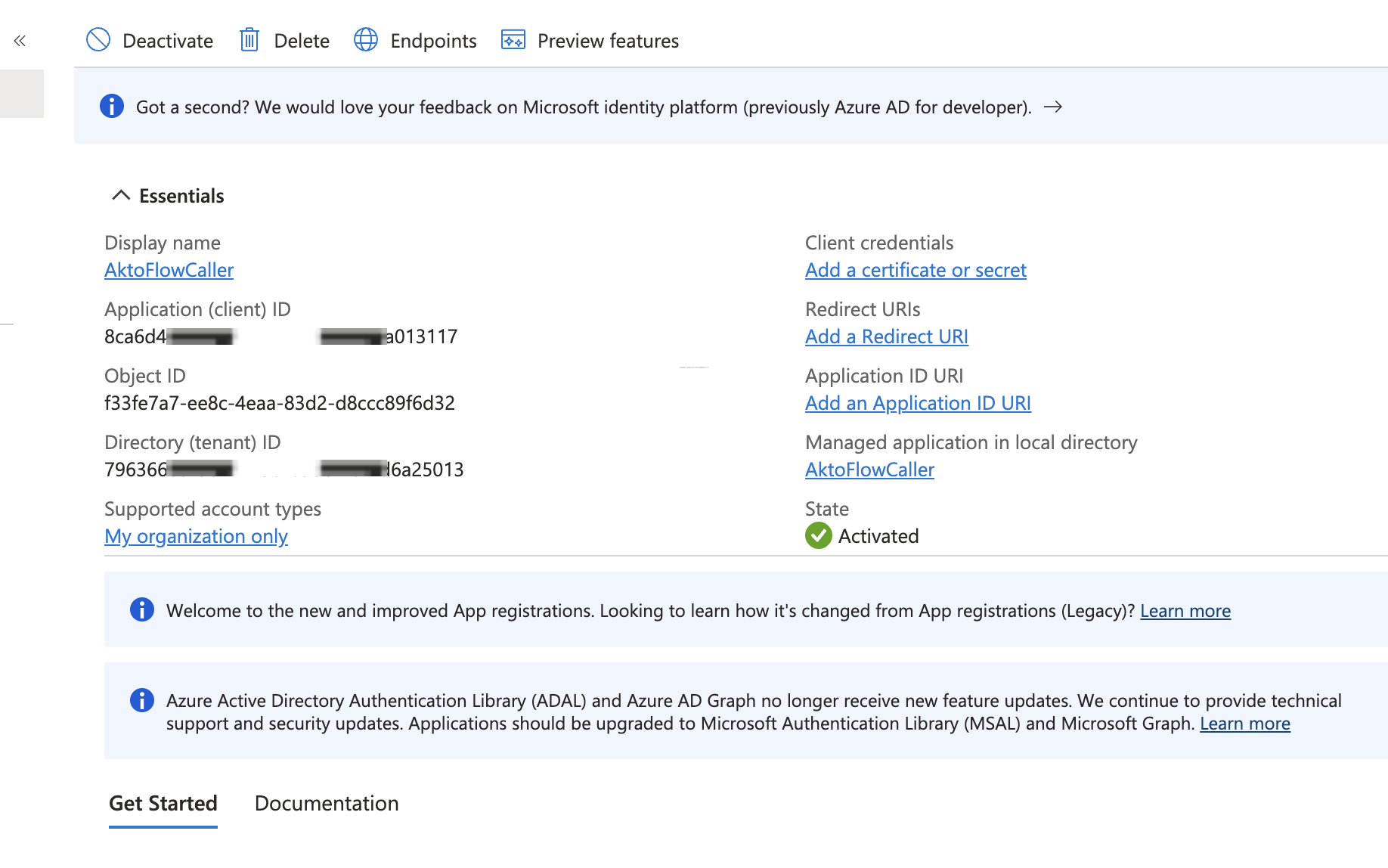
Note down:
* **Application (Client) ID**
* **Directory (Tenant) ID**
{% endstep %}
{% endstepper %}
### Create a Client Secret
{% stepper %}
{% step %}
Go to **Certificates & secrets** > **New client secret**.
{% endstep %}
{% step %}
Set an expiry and click **Add**.
{% endstep %}
{% step %}
**Copy the secret value immediately** — it is not shown again.
{% endstep %}
{% endstepper %}
### Add API Permissions (Optional)
{% hint style="info" %}
API permissions are not required for most tenants. Power Automate's HTTP trigger only validates the token's `aud`, `iss`, and `tid` claims — it does not check specific scopes or roles. Skip this section and proceed to Step 2. If you run into authentication errors while triggering the flow, come back and add these permissions.
{% endhint %}
{% stepper %}
{% step %}
Go to **API Permissions** > **Add a permission**.
{% endstep %}
{% step %}
Select the **APIs my organization uses** tab. Search for **Power Platform API** and add the following delegated permission:
* `CopilotStudio.Copilots.Invoke`
{% endstep %}
{% step %}
Click **Add a permission** again. Search for **Power Automate** (also listed as "Microsoft Flow Service") and add the following delegated permission:
* `User`
{% endstep %}
{% step %}
Click **Grant admin consent**.
{% hint style="warning" %}
Granting admin consent requires the **Application Administrator** or **Global Administrator** role in Microsoft Entra. If you don't have this access, ask your Microsoft 365 administrator to grant consent on your behalf — or ask them to create the app registration and assign the permissions entirely.
{% endhint %}
{% endstep %}
{% endstepper %}
***
## Step 2: Create a Power Automate Flow
This flow is the HTTP endpoint that Akto will call. It forwards the prompt to your Copilot Studio agent and returns the response.
{% stepper %}
{% step %}
Go to [Power Automate](https://make.powerautomate.com).
{% endstep %}
{% step %}
From the top-right, select the **Environment** where your Copilot Studio agent was created.
{% endstep %}
{% step %}
In the left nav, click **Create**. Under the **Start from blank** section, select **Instant cloud flow**.
{% endstep %}
{% step %}
Click **Add Trigger** and search for **"When an HTTP request is received"** — select it.
{% hint style="info" %}
Akto sends requests to your Power Automate flow from the IP address **135.119.57.229**. If your flow or network has IP allowlisting enabled, add this IP to your allowlist.
{% endhint %}
{% endstep %}
{% step %}
In the trigger settings, set **"Who can trigger the flow?"** to:
* **Any user in my tenant** — for broad access
{% endstep %}
{% step %}
Click on "Use sample payload to generate schema" and add the below payload
```json
{
"query": "hello"
}
```
{% endstep %}
{% step %}
**Save the flow first** — the trigger URL is only generated after saving. Copy the **HTTP POST URL** from the trigger card.
{% endstep %}
{% step %}
Click **+** to add a new step, search for **Microsoft Copilot Studio**, and select **"Execute Agent and wait"**.
{% endstep %}
{% step %}
Connect your Copilot Studio account if not connected (provide a connection name and authenticate with OAuth).
{% endstep %}
{% step %}
Configure the action:
* **Agent**: select your published agent
* Click **Advanced parameters** and select **Message**
* In the **Message** field, click **Add dynamic content** → select `query`
{% endstep %}
{% step %}
Click **+** to add another step — search for and select **Response** (from the Request connector).
{% endstep %}
{% step %}
Set the following fields:
* **Status Code**: `200`
* **Content-Type header**: `application/json`
* **Body**: click the function icon (`fx`) and enter the expression below
```
addProperty(json('{}'), 'lastResponse', outputs('Execute_Agent_and_wait')?['body/lastResponse'])
```
{% endstep %}
{% step %}
**Save** the flow.
{% endstep %}
{% endstepper %}
{% hint style="warning" %}
Use **"Execute Agent and wait"** — not **"Execute Agent"**. The latter is fire-and-forget and does not return the agent's response.
{% endhint %}
***
## Step 3: Test the Flow Manually
Verify everything works before connecting to Akto.
### Get an Access Token
```bash
curl --request POST \
--url https://login.microsoftonline.com//oauth2/v2.0/token \
--header 'content-type: application/x-www-form-urlencoded' \
--data client_id= \
--data 'scope=https://service.flow.microsoft.com//.default' \
--data 'client_secret=' \
--data grant_type=client_credentials
```
{% hint style="warning" %}
The scope uses a **double slash** (`//`) before `.default`. This is required — the token audience must be exactly `https://service.flow.microsoft.com/` (with trailing slash). A single slash produces a mismatched `aud` claim and the flow will reject the token with `MisMatchingOAuthClaims`.
{% endhint %}
Copy the `access_token` from the response.
### Call the Flow
```bash
curl --request POST \
--url '' \
--header 'Authorization: Bearer ' \
--header 'Content-Type: application/json' \
--data '{
"query": "what are you doing?"
}'
```
Replace `` with the HTTP POST URL copied from the trigger card in Step 2.
**Expected response:** The agent's reply in the response body.
***
## Step 4: Add to Akto for Automated Red Teaming
### Add the AI Agent to Akto
{% stepper %}
{% step %}
Log in to Akto and navigate to **Argus** > **Connectors** > **Bring your own AI Agent**.
{% endstep %}
{% step %}
In the **URL** field, paste the `FLOW_TRIGGER_URL` from Step 2.
{% hint style="info" %}
The trigger URL generated by Power Automate includes `:443` after the hostname (e.g., `https://defaultxxx.f8.environment.api.powerplatform.com:443/powerautomate/...`). Remove `:443` before pasting into Akto.
{% endhint %}
{% endstep %}
{% step %}
Select **Custom body** and add the sample payload:
```json
{
"query": "hello"
}
```
{% endstep %}
{% step %}
Click **Add Custom Headers** and add the following:
* **Key**: `Authorization`
* **Value**: `Bearer `
Replace `` with the token obtained in Step 3.
{% endstep %}
{% step %}
Click **Import**.
{% endstep %}
{% endstepper %}
Wait a few seconds — your imported agent will appear under **Agentic Assets** > **Custom** tab.
***
### Create and Configure a Test Role
A test role tells Akto how to fetch a fresh access token automatically during red teaming, since tokens expire.
{% stepper %}
{% step %}
Go to **AI Red Teaming** > **Scan Roles** and click **Create New Test Role**.
{% endstep %}
{% step %}
Enter a name for the test role and configure the role endpoint conditions as needed.
{% endstep %}
{% step %}
Scroll to the **Automated Auth Token Generation** section and configure the token endpoint:
* **URL**: `https://login.microsoftonline.com//oauth2/v2.0/token`
* **Method**: `POST`
* **Headers**:
```json
{"content-type": "application/x-www-form-urlencoded"}
```
* **Body**:
```
client_id=&scope=https://service.flow.microsoft.com//.default&client_secret=&grant_type=client_credentials
```
{% endstep %}
{% step %}
In the **Extract** section, configure how Akto pulls the token from the response and set it to correct location during Red Teaming:
* **From**: `Header`
* **Key**: `Authorization`
* **Value**: `Bearer ${x1.response.body.access_token}`
{% endstep %}
{% step %}
Click **Save**.
{% endstep %}
{% endstepper %}
{% hint style="info" %}
For a detailed walkthrough of test role configuration, refer to the [Create a Test Role](https://docs.akto.io/api-security-testing/how-to/create-a-test-role#id-3.-automated-auth-token-generation) guide.
{% endhint %}
***
### Run a Red Teaming Scan
{% stepper %}
{% step %}
Navigate to **AI Agent Discovery** and open the collection that contains your imported Copilot Studio agent.
{% endstep %}
{% step %}
Select the agent endpoint you want to red team.
{% endstep %}
{% step %}
Click **Run Scan** to open the scan configuration panel.
{% endstep %}
{% step %}
Choose the red teaming tests you want to execute against the agent.
{% endstep %}
{% step %}
In the **Roles** section, select the test role you configured in the previous section. This ensures Akto automatically refreshes the access token during the scan.
{% endstep %}
{% step %}
Click **Run Scan** to start. Akto will send adversarial prompts to your Copilot Studio agent and analyze the responses.
{% endstep %}
{% endstepper %}
***
## Troubleshooting
### HTTP 401 on flow trigger — `MisMatchingOAuthClaims`
**Symptom:** Flow returns HTTP 401 with `"One or more claims either missing or does not match with the open authentication access control policy"`.
**Cause:** Token acquired with single slash in scope (`https://service.flow.microsoft.com/.default`). The `aud` claim in the JWT does not match what the flow expects.
**Fix:** Use double slash in the scope: `https://service.flow.microsoft.com//.default`. The trailing slash is part of the resource URI — `.default` appends after it, producing `//`. To verify, paste the token at [jwt.ms](https://jwt.ms) and confirm `aud` is `https://service.flow.microsoft.com/`.
***
### HTTP 401 or 403 — token audience mismatch
**Symptom:** Token looks valid but the flow rejects it.
**Cause:** Token was obtained for the wrong resource — common mistakes are using `https://management.azure.com/.default` or `https://api.powerplatform.com/.default`.
**Fix:** The only correct scope for HTTP-triggered flows is `https://service.flow.microsoft.com//.default`. Check the `aud` field at [jwt.ms](https://jwt.ms).
***
### HTTP 403 despite correct token
**Cause (A) — Admin consent not granted:** API permissions are listed in the app registration but the green "Granted" checkmark is missing.
**Fix:** Go to **Azure Portal** → App Registration → **API permissions** → click **Grant admin consent for \[tenant]**.
**Cause (B) — Trigger restricted to specific users:** The "When an HTTP request is received" trigger is set to "Specific users in my tenant". Service principals are not users and will be rejected.
**Fix:** In the trigger settings, set **"Who can trigger the flow?"** to **"Any user in my tenant"**. Save the flow.
***
### Flow trigger URL shows a placeholder — no URL to copy
**Cause:** Power Automate generates the trigger URL only after the first save. It is not shown in an unsaved/draft flow.
**Fix:** Save the flow first, then open the trigger step to copy the URL.
***
### `:443` in the trigger URL causes failures
**Symptom:** Requests fail or the URL is rejected when pasted into Akto or other tools.
**Cause:** Power Automate includes the explicit port `:443` in the generated URL. Some tools reject URLs with the default HTTPS port explicitly stated.
**Fix:** Remove `:443` from the URL before using it — e.g., change `https://xxx.api.powerplatform.com:443/powerautomate/...` to `https://xxx.api.powerplatform.com/powerautomate/...`.
***
### "Execute Agent and wait" returns empty or null response
**Cause (A) — Wrong action used:** If you used **"Execute Agent"** (fire-and-forget) instead of **"Execute Agent and wait"**, the flow proceeds before the agent responds and no output is returned.
**Fix:** Replace the action with **"Execute Agent and wait"**.
**Cause (B) — Wrong expression path:** The expression `outputs('Execute_Agent_and_wait')?['body/lastResponse']` can return null if the path is incorrect for your flow version.
**Fix:** Use `body('Execute_Agent_and_wait')?['lastResponse']` instead. To inspect the actual output structure, open the flow run history and expand the "Execute Agent and wait" step.
***
### Agent not found / not listed in the flow designer
**Cause (A) — Agent is in Draft state:** The connector only surfaces published agents.
**Fix:** In Copilot Studio, open the agent and click **Publish**. Wait for publication to complete before configuring the flow step.
**Cause (B) — Environment mismatch:** The flow and the agent are in different Power Platform environments. The connector only lists agents from its own environment.
**Fix:** Confirm both are in the same environment. Check the environment switcher (top-right) at [make.powerautomate.com](https://make.powerautomate.com) and [copilotstudio.microsoft.com](https://copilotstudio.microsoft.com) — they must match.
***
### Connector step fails with "Connection invalid" or "Fix connection"
**Cause:** The OAuth connection used by the "Execute Agent and wait" step expired or was invalidated (token expired after 90 days of inactivity, or the connection owner's account changed).
**Fix:** In the flow, click the connection reference on the "Execute Agent and wait" step and re-authenticate. For team-owned flows, use a dedicated service account as the connection owner so it does not break when individuals leave.
To re-authenticate directly: go to **Power Automate** → **Data** → **Connections** → find the Microsoft Copilot Studio connection → click **Fix connection**.
***
### HTTP 504 / caller times out after \~2 minutes
**Cause:** Power Automate enforces a hard 120-second limit on synchronous HTTP responses. If the flow does not reach the "Response" step within that window, the caller receives a timeout — regardless of subscription tier.
***
### HTTP 401 errors appear mid-scan after initially succeeding
**Cause:** Access tokens issued via client credentials expire after \~60 minutes. A long-running scan will eventually hit this limit.
**Fix:** Re-request a token using the same client credentials before the token expires. Cache the token and its `expires_in` value; refresh when within 5 minutes of expiry. There is no refresh token in the client credentials flow — POST to the token endpoint again with the same `client_id` and `client_secret`.
If you configured a Test Role in Akto with the token endpoint, Akto handles this automatically during scans.
***
### Premium license warning — flow won't run
**Cause:** Both the HTTP trigger and the Microsoft Copilot Studio connector are premium features. The flow owner needs a Power Automate Premium license.
**Fix:** Assign a **Power Automate Premium** (per-user or per-flow) license to the account that owns the flow. Each agent invocation via "Execute Agent and wait" also consumes Copilot Studio message credits — ensure your tenant has sufficient capacity.