> For the complete documentation index, see [llms.txt](https://ai-security-docs.akto.io/llms.txt). Markdown versions of documentation pages are available by appending `.md` to page URLs; this page is available as [Markdown](https://ai-security-docs.akto.io/akto-argus-agentic-ai-security-for-homegrown-ai/agentic-red-teaming/how-to/red-team-copilot-studio.md).
# Red Team Copilot Studio via Direct OAuth Login
{% hint style="info" %}
Use this guide if you have more than one agent to test. This setup requires an interactive user login to invoke the AI agents.
{% endhint %}
## Overview
This guide walks you through red teaming AI Agents built on Microsoft Copilot Studio using Akto. Akto connects directly to your Copilot Studio AI Agents using Microsoft Login provided in Scan Roles. You register an app in Microsoft Entra, create a scan role in Akto with your Microsoft Login, and Akto handles token refresh automatically so you can run adversarial tests.
## Prerequisites
* A **published** AI Agent in Copilot Studio (draft agents won't work)
* A Microsoft account with permission to create App Registrations and add API permissions in Microsoft Entra
* Access to [Microsoft Entra](https://entra.microsoft.com)
* Akto sends requests to your Copilot Studio AI Agents from the IP address **135.119.57.229**. If your network has IP allowlisting enabled, add this IP to your allowlist.
## 1. Create an App Registration in Microsoft Entra
This app registration allows Akto to authenticate with Microsoft Copilot Studio on your behalf using OAuth.
### Register the App
{% stepper %}
{% step %}
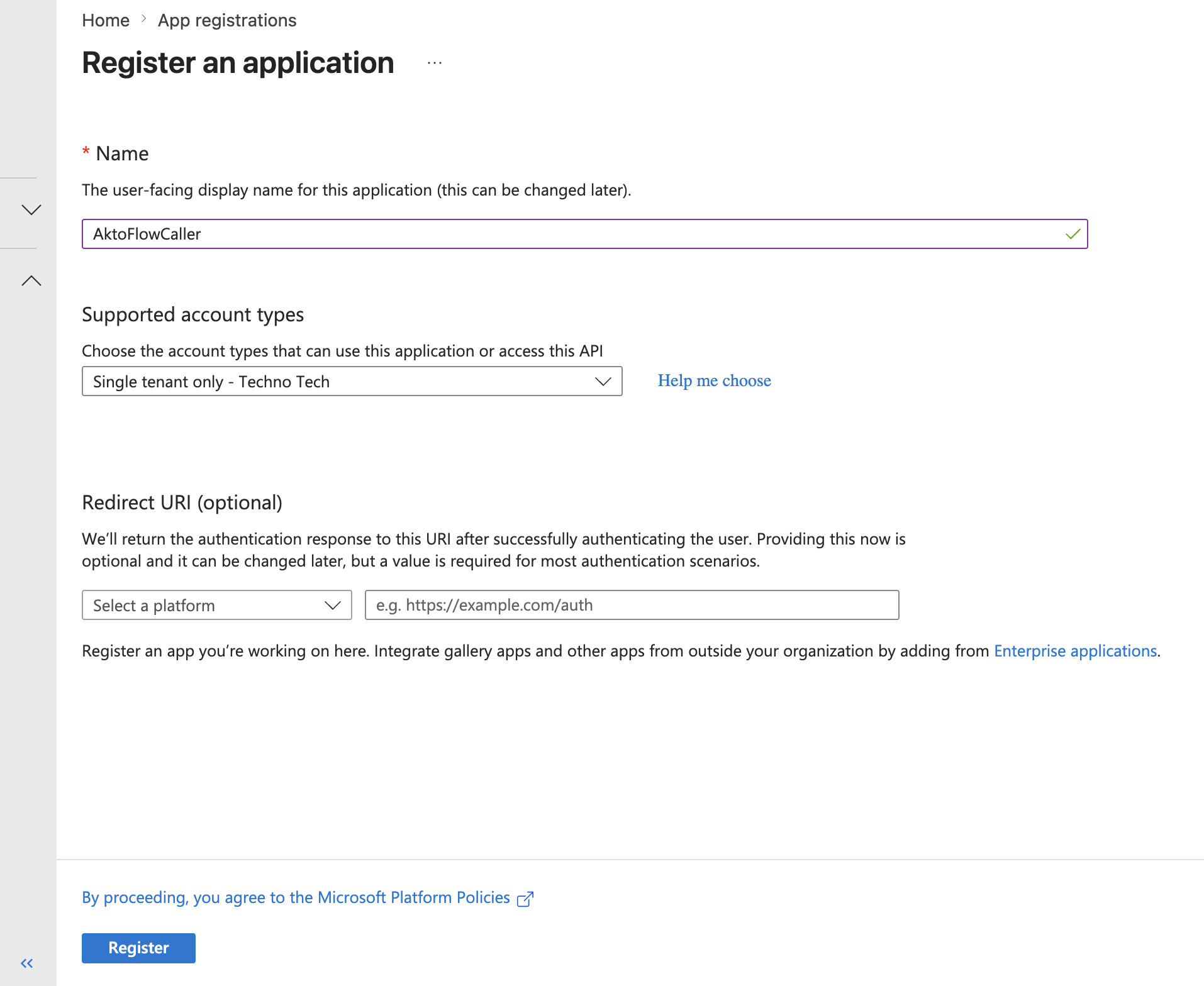
Go to [Microsoft Entra](https://entra.microsoft.com) > **App registrations** > **New registration**.
{% endstep %}
{% step %}
Give the app a name and set supported account types to **Single tenant**.
{% endstep %}
{% step %}
Configure the Redirect URI
* Select platform as **Web** and add the following as the URI:
https://app.akto.io/copilot/oauth/callback
* Click **Register**.
{% hint style="info" %}
You will be prompted to log in once with your Microsoft account when you [create the scan role](#id-2.-create-a-scan-role-in-akto). Once you do, Akto will obtain a refresh token that stays valid for **90 days**.
{% endhint %}
{% endstep %}
{% step %}
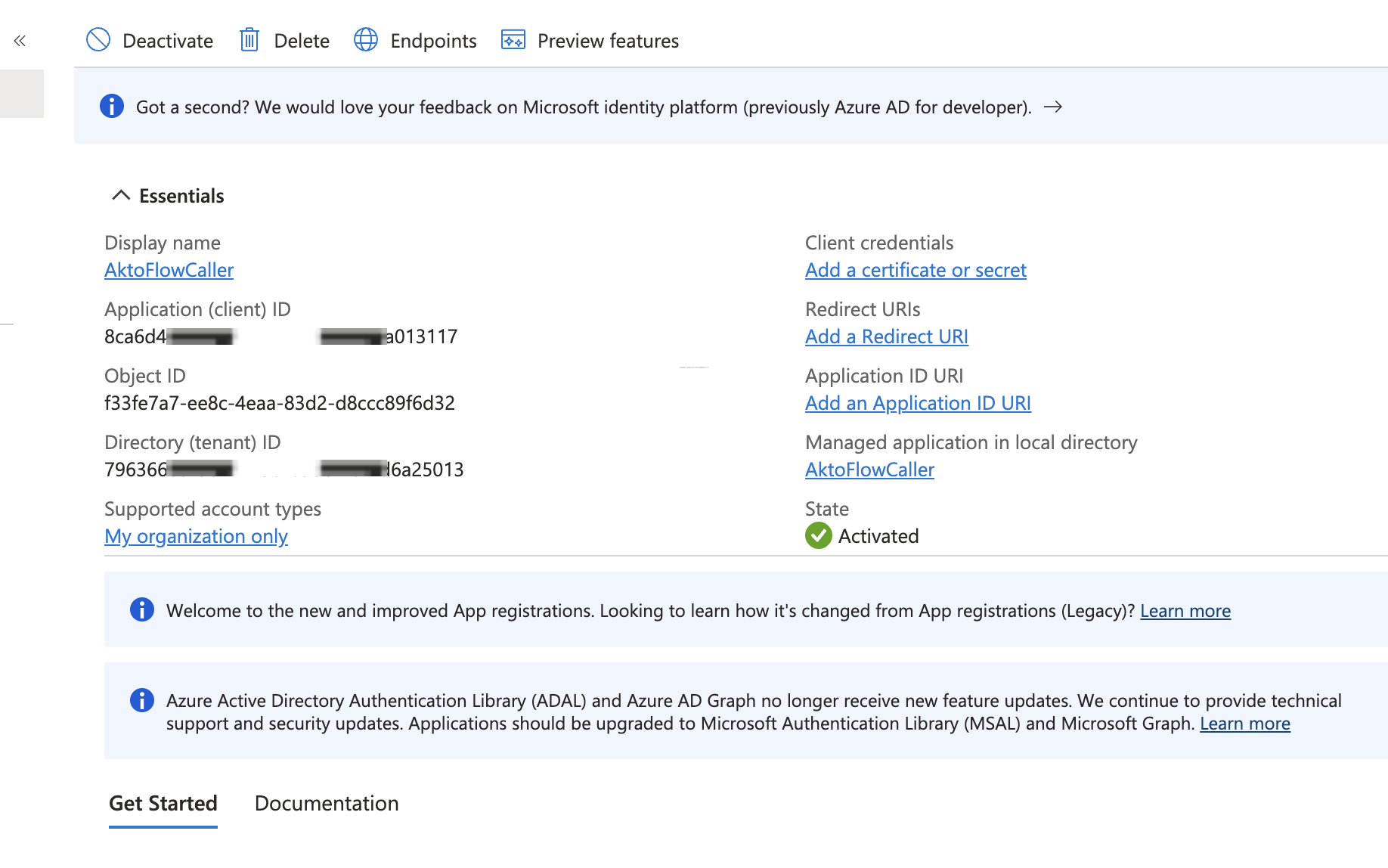
Note down:
* **Application (Client) ID**
* **Directory (Tenant) ID**
{% endstep %}
{% endstepper %}
### Create a Client Secret
{% stepper %}
{% step %}
Go to **Certificates & secrets** > **New client secret**.
{% endstep %}
{% step %}
Set an expiry and click **Add**.
{% endstep %}
{% step %}
**Copy the secret value immediately**: it is not shown again.
{% endstep %}
{% endstepper %}
### Add API Permissions
{% stepper %}
{% step %}
Go to **API Permissions** > **Add a permission**.
{% endstep %}
{% step %}
Select the **APIs my organization uses** tab. Search for **Power Platform API** and add the following **delegated permission**:
* `CopilotStudio.Copilots.Invoke`
{% endstep %}
{% step %}
(Optional) Click **Grant admin consent**.
{% hint style="info" %}
Granting admin consent requires the **Application Administrator** or **Global Administrator** role in Microsoft Entra. If you don't have this access, you can skip this step: users will be prompted to consent individually when they authenticate.
{% endhint %}
{% endstep %}
{% endstepper %}
## 2. Create a Scan Role in Akto
A scan role tells Akto which credentials to use when sending adversarial prompts to your Copilot Studio agent. For a full walkthrough of scan role configuration, refer to the [Create a Test Role](https://docs.akto.io/api-security-testing/how-to/create-a-test-role) guide.
{% stepper %}
{% step %}
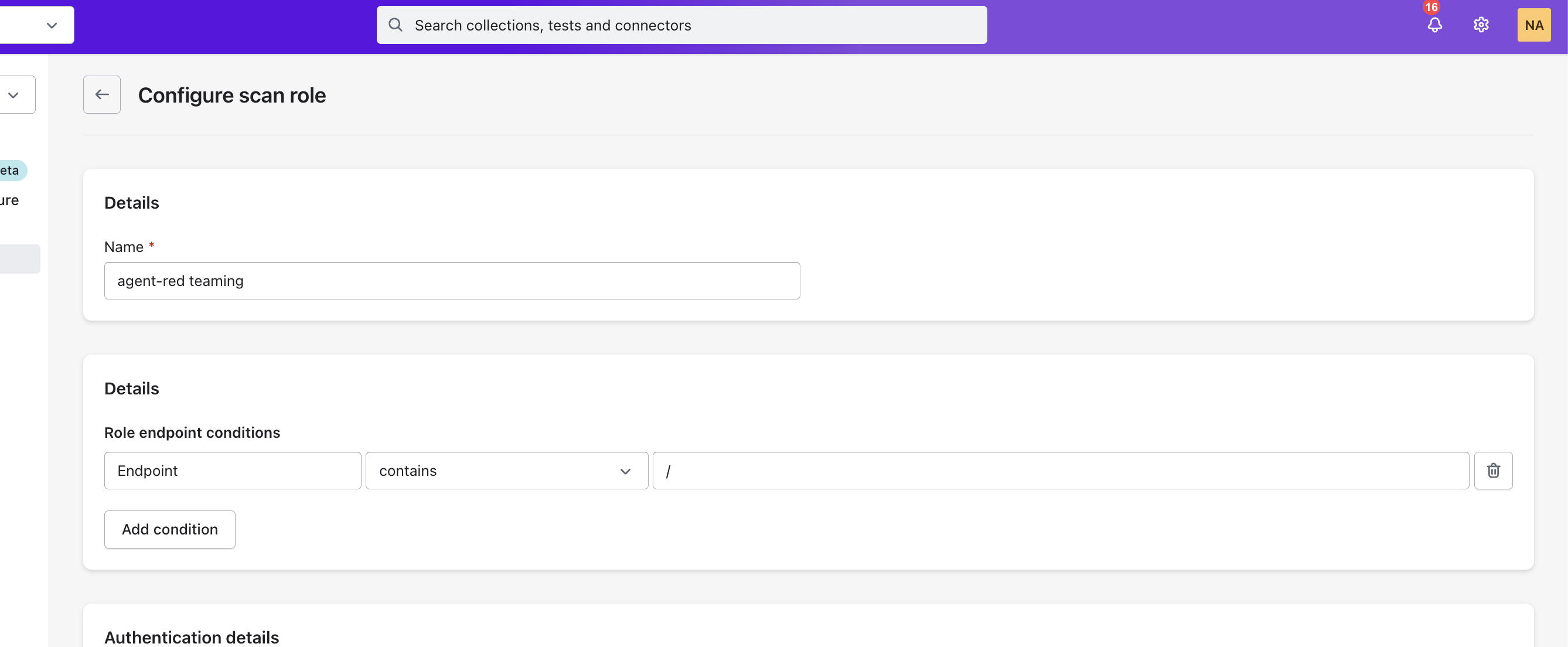
Go to **AI Red Teaming** > **Scan Roles** and click **Create New Test Role**.
{% endstep %}
{% step %}
Under **Details**, enter a name for the scan role (e.g. `agent-red-teaming`).
{% endstep %}
{% step %}
Under **Role endpoint conditions**, set:
* **Endpoint** | **contains** | `/`
{% endstep %}
{% step %}
Click **Save** on the top Right. Then navigate back to **Roles** and select the role you created.
{% endstep %}
{% step %}
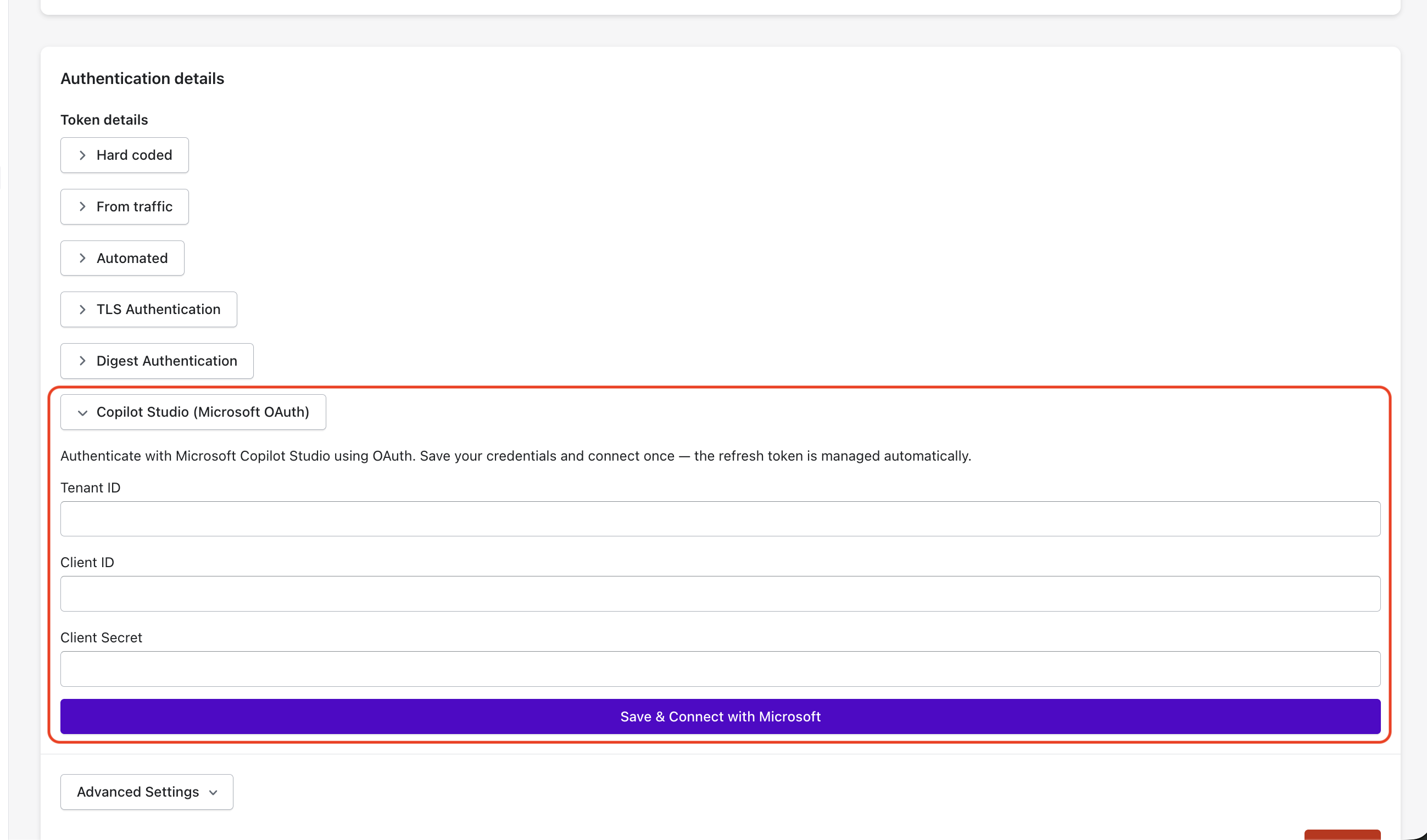
Scroll down to **Authentication details** > **Token details** and select **Copilot Studio (Microsoft OAuth)**.
{% endstep %}
{% step %}
Fill in the credentials from Step 1:
* **Tenant ID**: your Directory (Tenant) ID
* **Client ID**: your Application (Client) ID
* **Client Secret**: the secret value you copied
{% endstep %}
{% step %}
Click **Save & Connect with Microsoft** and complete the login prompt.
{% hint style="info" %}
You will be prompted to log in once with your Microsoft account. Once you do, Akto will obtain a refresh token that stays valid for **90 days**.
{% endhint %}
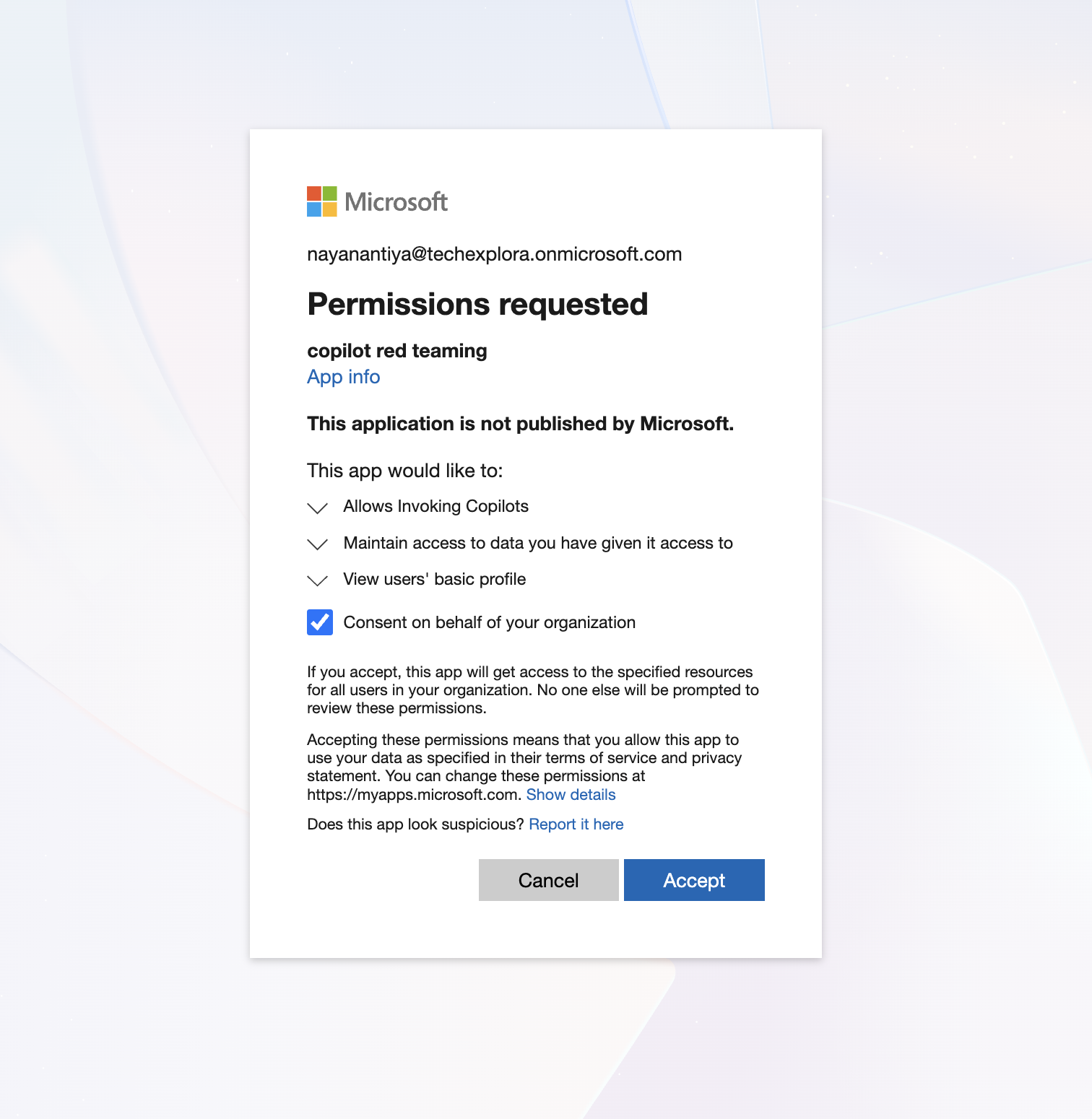
You might be prompted to grant consent to invoke Copilot Studio and other basic permissions. Read the permissions carefully and accept them.
Microsoft Consent
{% endstep %}
{% endstepper %}
## 3. Add Description to Your Agent
Providing a description helps Akto craft more targeted attack prompts specific to your agent's context.
{% stepper %}
{% step %}
In the Akto Dashboard, go to **AI Agent Discovery**.
{% endstep %}
{% step %}
Select any agent (collection).
{% endstep %}
{% step %}
Below the agent name at the top, click **Add Description**.
{% endstep %}
{% step %}
Add relevant information about your agent and press **Enter**.
{% endstep %}
{% endstepper %}
## 4. Run a Red Teaming Scan
{% stepper %}
{% step %}
Navigate to **AI Agent Discovery** and open the collection that contains your imported Copilot Studio agent.
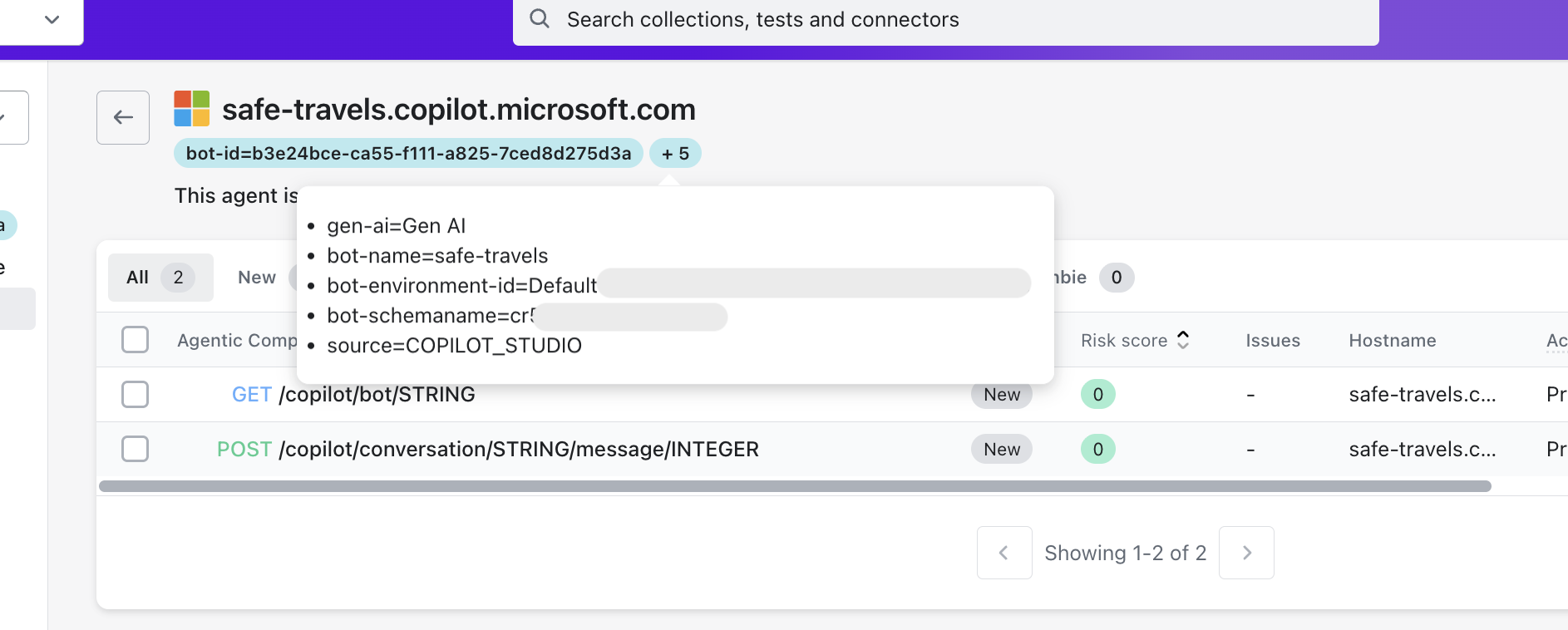
Verify that `bot-environment-id` and `bot-schemaname` are present in the collection tags. If not, expand the section below.
How to get and add bot-environment-id and bot-schemaname
These tags are required for Akto to correctly target your Copilot Studio agent during red teaming.
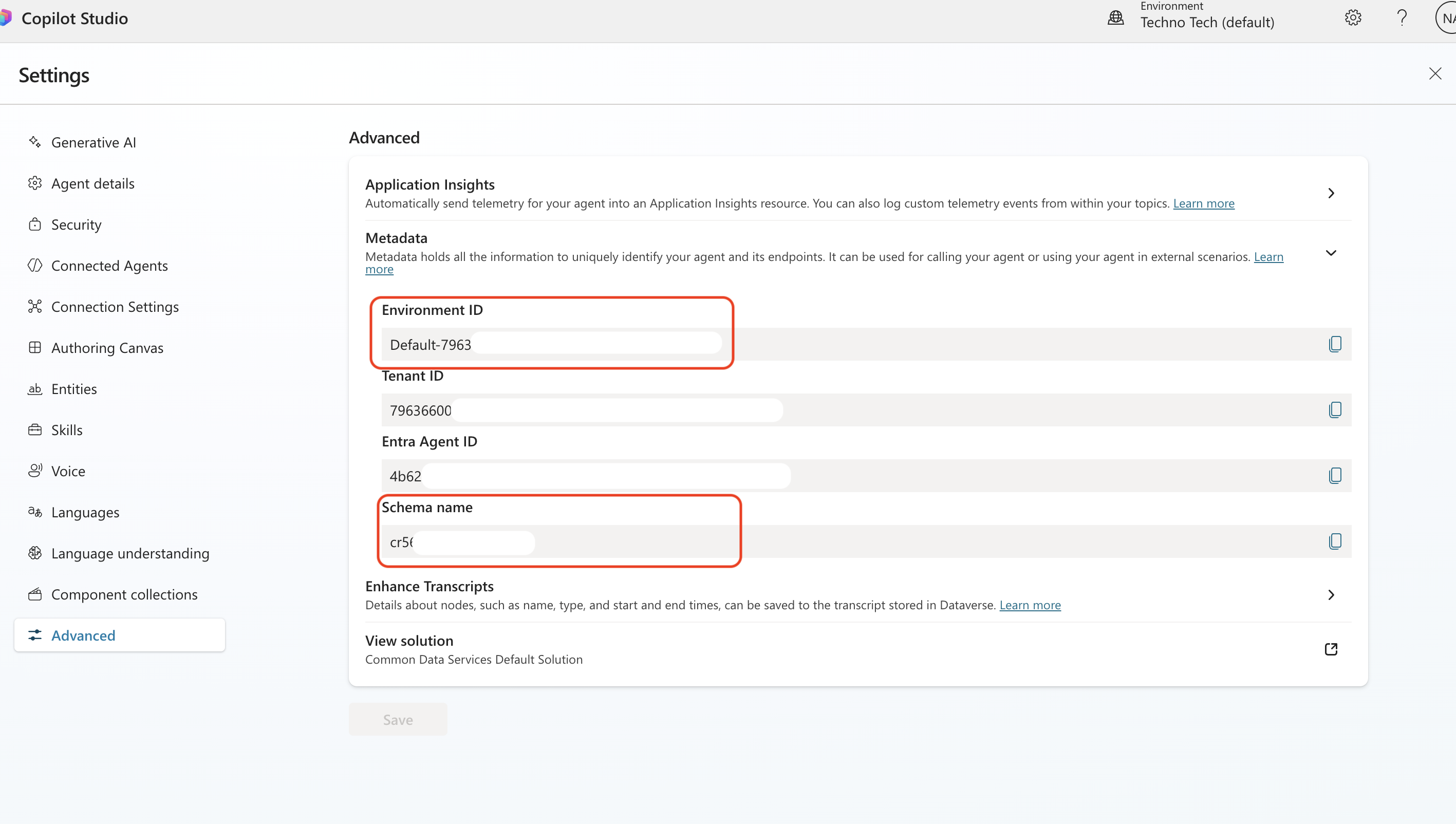
**Get the values from Copilot Studio**
1. Log in to .
2. Go to the **Agents** page and select your agent.
3. Click **Settings** > **Advanced** > **Metadata**.
4. Copy the **Environment ID** and **Schema name** values.
**Add them to the agent collection in Akto**
Once you have the values, add them as tags on the agent collection. Refer to [Create New Tags](/akto-argus-agentic-ai-security-for-homegrown-ai/agentic-ai-discovery/how-to/create-new-tags.md) for step-by-step instructions.
Add the following tags:
* `bot-environment-id=`
* `bot-schemaname=`
{% endstep %}
{% step %}
Click **Run Scan** to open the scan configuration panel.
{% endstep %}
{% step %}
Choose the red teaming tests you want to execute against the agent.
{% endstep %}
{% step %}
In the **Roles** section, select the scan role you **created in Step 2**.
{% endstep %}
{% step %}
Click **Run Scan** to start.
{% endstep %}
{% endstepper %}
## Get Support
If you need assistance with the Copilot Studio connector:
* **In-app Chat**: Use the chat widget in your Akto dashboard for instant support.
* **Discord Community**: Join our community at [discord.gg/Wpc6xVME4s](https://discord.gg/Wpc6xVME4s).
* **Email Support**: Contact us at .
* **Contact Form**: Submit a support request at .